How to Play Multiplayer Games on Yuzu Emulator
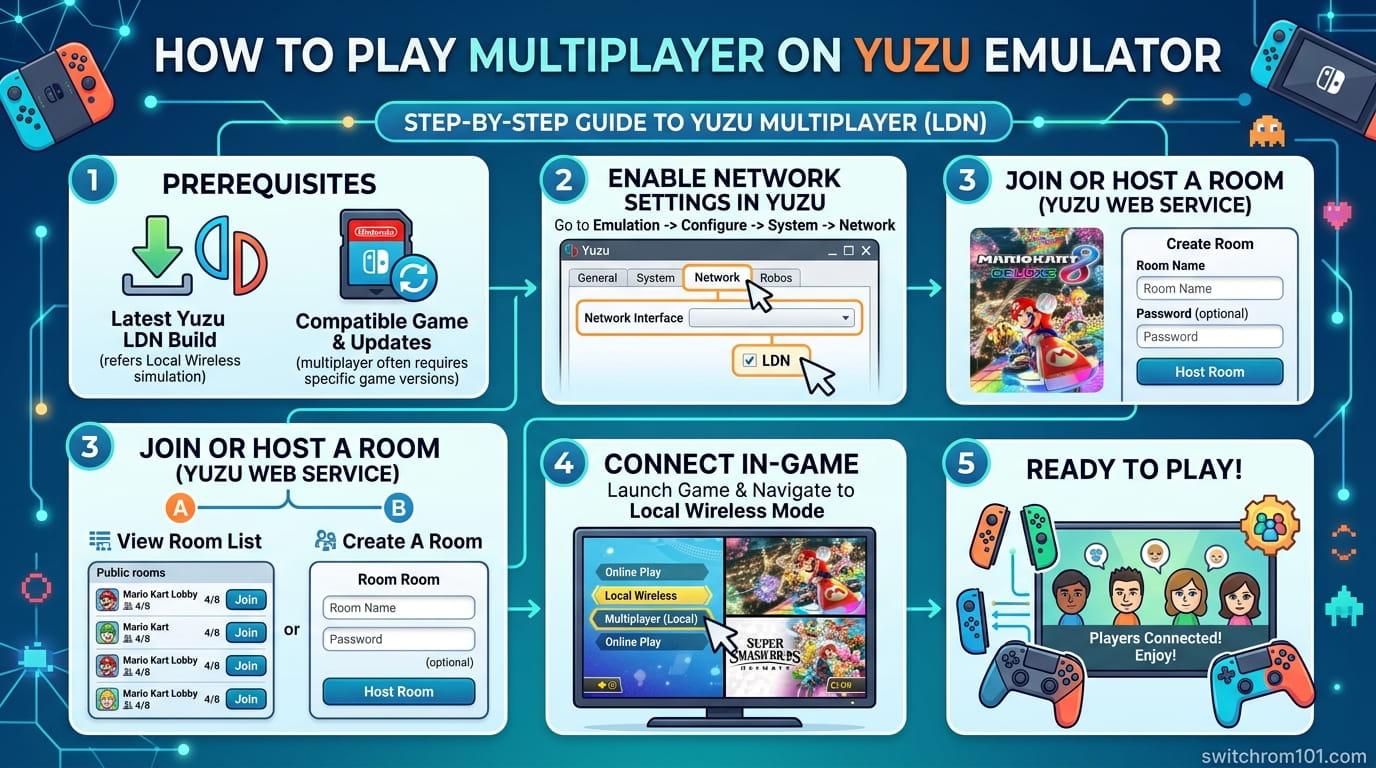
Yuzu is one of the most popular Nintendo Switch emulators for PC, allowing users to enjoy Switch games on their computer. While Yuzu excels in running single-player games, many gamers also wonder if it’s possible to play multiplayer games on the emulator. In this guide, we’ll explain how to set up multiplayer on Yuzu, both in local multiplayer and online mode. Whether you’re playing with friends on the same system or connecting over the internet, this article will provide you with all the necessary steps to enjoy multiplayer Switch games on Yuzu.
What Is Yuzu Emulator?
Yuzu is a Nintendo Switch emulator that allows you to play Switch games on your PC. It’s an open-source project and supports a wide range of Switch titles. Yuzu provides incredible features, including higher resolutions, smoother frame rates, and support for modding games. However, getting multiplayer games to work on Yuzu requires special configuration since Switch multiplayer usually relies on online servers or local wireless.
Types of Multiplayer on Yuzu Emulator
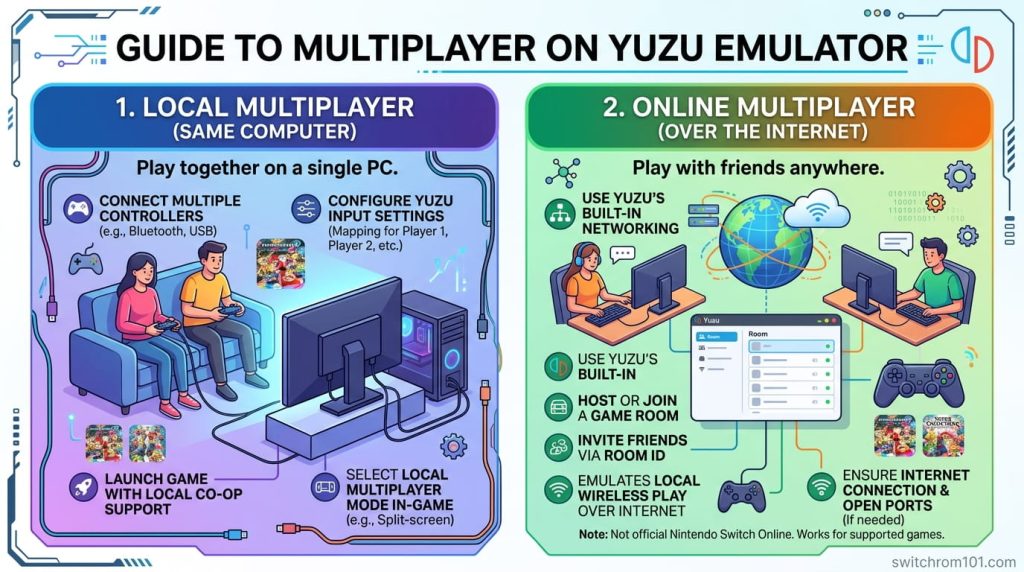
Before we dive into the setup, it’s important to understand the different types of multiplayer modes available in Yuzu:
1. Local Multiplayer (Same Computer)
Local multiplayer lets you play with multiple players using the same PC. It works for games that allow local co-op or split-screen gameplay, such as:
- Mario Kart 8 Deluxe
- Super Smash Bros. Ultimate
- Pokémon Sword/Shield (local battles)
2. Online Multiplayer (Over the Internet)
Online multiplayer allows you to play games like Splatoon 2, Mario Kart 8 Deluxe, or Super Smash Bros. Ultimate with friends over the internet, simulating Nintendo’s online service.
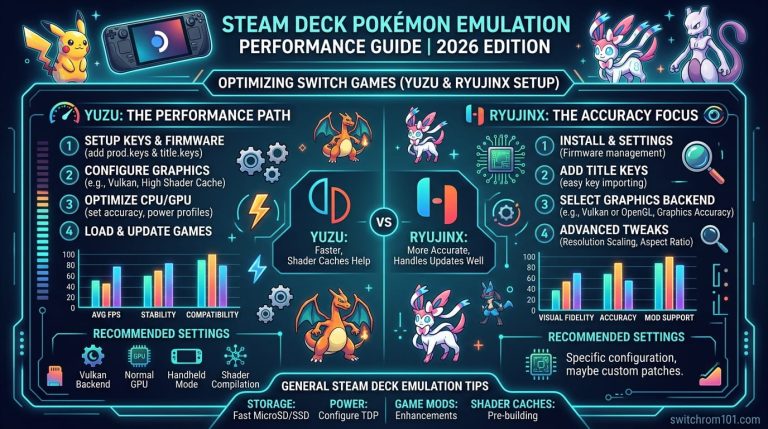
Pokémon on Steam Deck Emulation Performance 2026: Yuzu and Ryujinx Setup
Step-by-Step Guide to Playing Multiplayer Games on Yuzu Emulator
Step 1: Install Yuzu Emulator
- Download Yuzu from the official website: https://yuzu-emu.org/.
- Install the emulator and make sure to update it to the latest version to ensure compatibility with multiplayer features.
Step 2: Setup for Local Multiplayer
To set up local multiplayer on Yuzu, you need to configure controller settings for multiple users.
- Connect Your Controllers:
- Plug in your USB controllers (e.g., Xbox, PlayStation controllers) or wirelessly sync Joy-Cons or Pro Controllers.
- Yuzu supports both keyboard input and external controllers. You can use a Gamepad, Switch Joy-Cons, or a Pro Controller.
- Configure Controller Settings:
- Open Yuzu and go to Options > Configure > Controls.
- For each controller, select Player 1, Player 2, etc., and configure the button mapping.
- Ensure each player has a unique controller profile.
- Launch the Game:
- Start the game you want to play (e.g., Super Mario Kart 8 Deluxe or Super Smash Bros. Ultimate).
- Go to the multiplayer mode in the game and ensure all players are registered (this could involve connecting controllers in the game itself, similar to how it works on a real Switch).
- Start Playing:
- Begin playing in local multiplayer mode and enjoy the game with your friends on the same computer.
Step 3: Setting Up Online Multiplayer (Over the Internet)
Playing online multiplayer on Yuzu involves more steps, as it requires simulating Nintendo’s online services.
- Install Yuzu’s Online Multiplayer Feature:
- Yuzu uses YuzuNet, a custom online server for playing Switch games online on PC.
- Make sure your Yuzu installation includes YuzuNet, which allows you to connect to online servers.
- If you’re using Ryujinx, you’ll need a different solution called Seamless for playing online.
- Obtain the Required Files:
- You need to have prod.keys and title.keys files, which are essential for emulating online services. These files are dumped from your Switch and are required for accessing multiplayer features.
- You can dump them from your Switch console using tools like Lockpick_RCM.
- Set Up Nintendo Switch Online Subscription:
- YuzuNet works similarly to Nintendo’s online service, and to play some online games, you will need to sign in using your Nintendo account.
- You may also need to configure your network settings if you’re connecting to the YuzuNet servers or a third-party server.
- Configure the Online Multiplayer Settings:
- Launch Yuzu and go to Options > Configure > Network.
- In the Network tab, set the emulator to use Yuzu’s multiplayer servers (or any third-party servers, if applicable).
- Start the Game:
- Open a game that supports online multiplayer (e.g., Super Smash Bros. Ultimate, Splatoon 2).
- Go to the online mode and select the appropriate multiplayer option.
- You should now be able to play with friends online, just like you would on the Nintendo Switch.
Tips for a Better Multiplayer Experience on Yuzu
- Stable Internet Connection:
- For online multiplayer, make sure you have a stable and fast internet connection to avoid lag or disconnections during the game.
- Use Controllers for Better Control:
- While you can use a keyboard, using game controllers like Switch Joy-Cons or Pro Controllers will give you a much better experience for multiplayer games.
- Regularly Update Yuzu:
- Yuzu developers are always working on improving multiplayer compatibility and performance. Keep your emulator updated to avoid issues with connectivity and compatibility.
- Check Game Compatibility:
- Not all games are compatible with online multiplayer on Yuzu. Before trying to play a game online, check the Yuzu compatibility list to see if the game supports online play via YuzuNet.
Conclusion: Playing Multiplayer Games on Yuzu Emulator
In 2026, Yuzu remains one of the top Switch emulators for playing multiplayer games on your PC. Whether you’re playing local multiplayer or connecting online, Yuzu provides a solid emulation experience for Switch games. By following this guide, you should be able to easily set up multiplayer and enjoy your favorite Pokémon, Super Mario, and Zelda games with friends on your PC.
FAQ
1. Can I play online multiplayer games on Yuzu?
Yes, using YuzuNet, you can simulate Nintendo’s online services and play games like Splatoon 2 and Super Smash Bros. Ultimate online.
2. Do I need a Nintendo Switch Online subscription to play multiplayer on Yuzu?
While Nintendo Switch Online is required for official Switch online services, Yuzu uses YuzuNet to allow online play, so a Nintendo Switch Online subscription is not required.
3. Can I use my Switch controllers for multiplayer in Yuzu?
Yes, Switch Pro Controllers and Joy-Con controllers are supported on Yuzu. Simply connect them to your PC to use for local multiplayer games.
Switch 2 Banned for Used Games? The Truth About Second-Hand Games, Bans & Risks Explained

(GameOverlord) has been involved in Nintendo Switch emulation
since 2019. She owns two Nintendo Switch consoles and a Steam Deck OLED,
and has hands-on tested over 40 Switch titles across Ryujinx and
Sudachi emulators. Her background is in consumer electronics and
she has followed emulation law developments in the US, UK, and EU
since the Yuzu shutdown in 2024. SwitchROM101 was built to fill the
gap left by misleading ROM sites — giving gamers accurate, legal,
and technically correct information without hosting any game files.