🕹️Why Does My Ryujinx Keep Crashing? Troubleshooting and Fixes🎮🔧
Ryujinx is one of the most popular Nintendo Switch emulators, providing gamers with the ability to play Switch games on their PCs. However, many users face issues where Ryujinx keeps crashing, preventing them from enjoying their favorite titles. If you are experiencing frequent crashes while using Ryujinx, don’t worry! In this guide, we will explore the common reasons why Ryujinx crashes and provide you with troubleshooting steps to fix the issue and get your emulator running smoothly again.
Common Reasons Why Ryujinx Crashes
1. Outdated Ryujinx Version
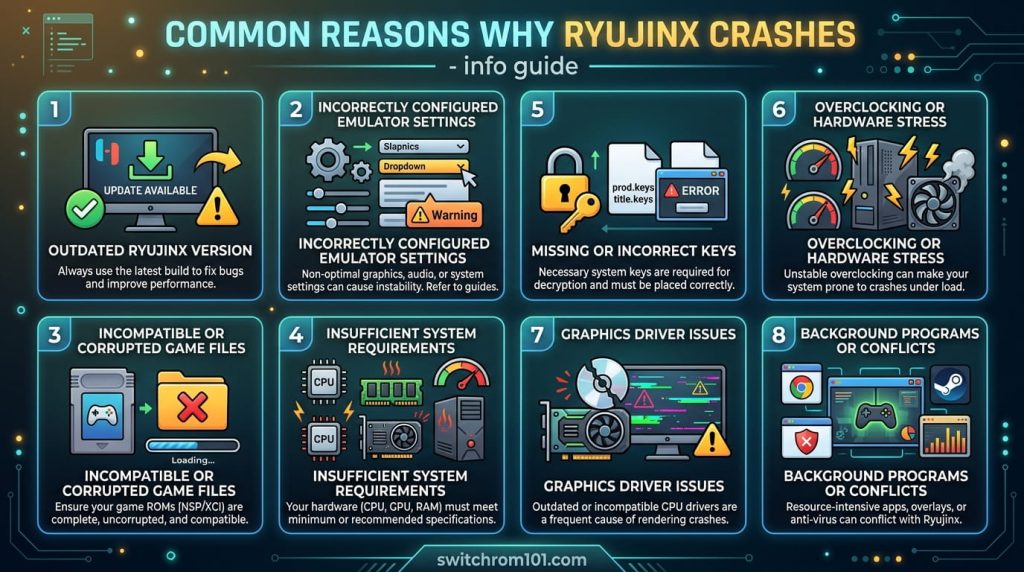
One of the primary reasons Ryujinx might keep crashing is that you are using an outdated version of the emulator. Ryujinx is regularly updated, and new releases often include bug fixes, performance improvements, and compatibility updates.
- Solution: Always ensure that you are using the latest version of Ryujinx by checking the official Ryujinx GitHub page or Ryujinx’s official website. Updating to the latest version may resolve your crashes.
2. Incorrectly Configured Emulator Settings
If Ryujinx is crashing, it may be due to incorrect or incompatible settings within the emulator. Graphics settings, input configuration, or other custom settings could be causing conflicts.
- Solution: Reset your Ryujinx settings to default and try running the game again. To reset settings:
- Open Ryujinx.
- Navigate to Options > Settings.
- Select Reset settings (make sure to back up your current settings if necessary).
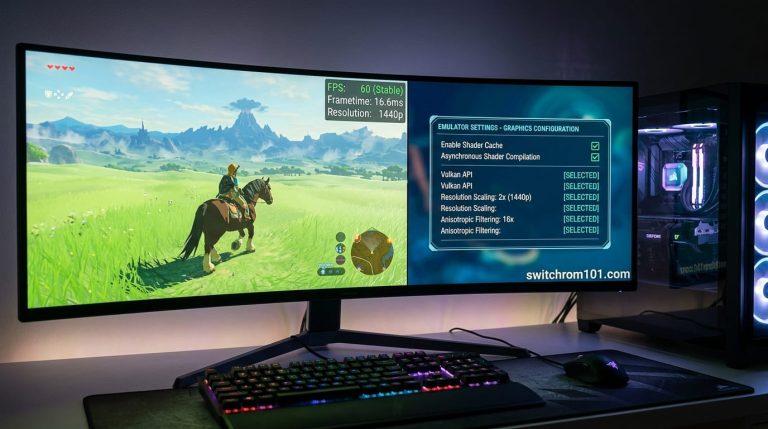
Alternatively, manually adjust specific settings, such as Graphics Backend (Vulkan vs. OpenGL), to ensure the best performance for your system.
3. Incompatible or Corrupted Game Files
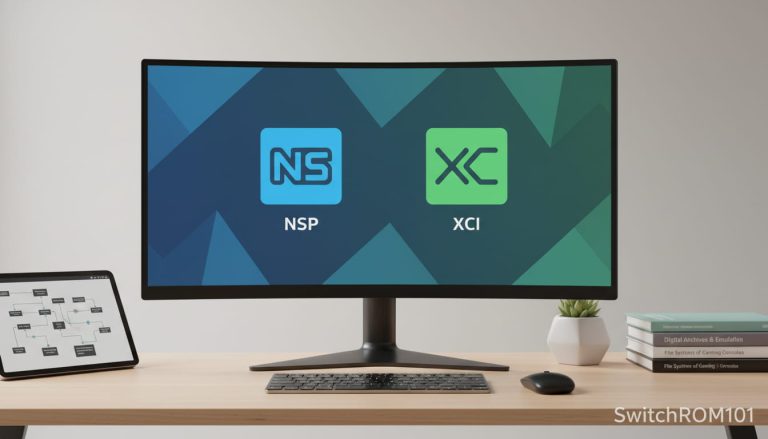
Corrupted or improperly dumped game files (e.g., NSP or XCI files) can cause Ryujinx to crash when loading the game.
- Solution: Re-dump the Switch game from your console using a trusted method or ensure that the game files are intact. You can verify the integrity of the game files by comparing their hashes with known good dumps from the community.
What File Formats Are Switch ROMs? NSP vs XCI Explained Simply
4. Insufficient System Requirements
Ryujinx is a demanding emulator, especially when it comes to RAM and GPU performance. If your system does not meet the minimum requirements for running Switch games, Ryujinx may crash unexpectedly.
- Solution: Check your PC specifications and ensure that your CPU and GPU meet the recommended system requirements for Ryujinx. You’ll need a modern CPU (Intel Core i5 or better), 4GB of RAM or more, and a Vulkan-compatible GPU to ensure smooth performance.
5. Missing or Incorrect Keys
Ryujinx requires the Nintendo Switch keys (specifically prod.keys and title.keys) to run games. Missing, outdated, or incorrect keys can cause crashes.
- Solution: Ensure that you have dumped the correct keys from your Nintendo Switch console. You can use the Lockpick_RCM tool to dump the prod.keys and title.keys files and place them in the correct folder inside your Ryujinx installation directory.
6. Overclocking or Hardware Stress
Running Ryujinx with overclocked hardware or under extreme stress can cause instability and crashes, especially on systems with insufficient cooling.
- Solution: If you are overclocking your CPU or GPU, try resetting the clock speeds to default. Ensure that your hardware is running within safe thermal limits by monitoring temperatures with a tool like HWMonitor.
7. Graphics Driver Issues
Outdated or incompatible graphics drivers can cause Ryujinx to crash. This is especially common with older GPU models or when using Beta graphics drivers.
- Solution: Update your graphics drivers to the latest stable version. If you are using an NVIDIA GPU, visit the official NVIDIA website to download the latest drivers. For AMD users, visit the AMD support page.
8. Background Programs or Conflicts
Other software running in the background, such as antivirus programs, screen recording tools, or third-party utilities, can interfere with Ryujinx and cause crashes.
- Solution: Temporarily disable background programs or antivirus software to see if the issue persists. You can also run Ryujinx in Windows Safe Mode or with minimal startup programs to isolate the cause of the crash.
How to Turn NSZ into NSP: Simple Guide for Converting Nintendo Switch Files
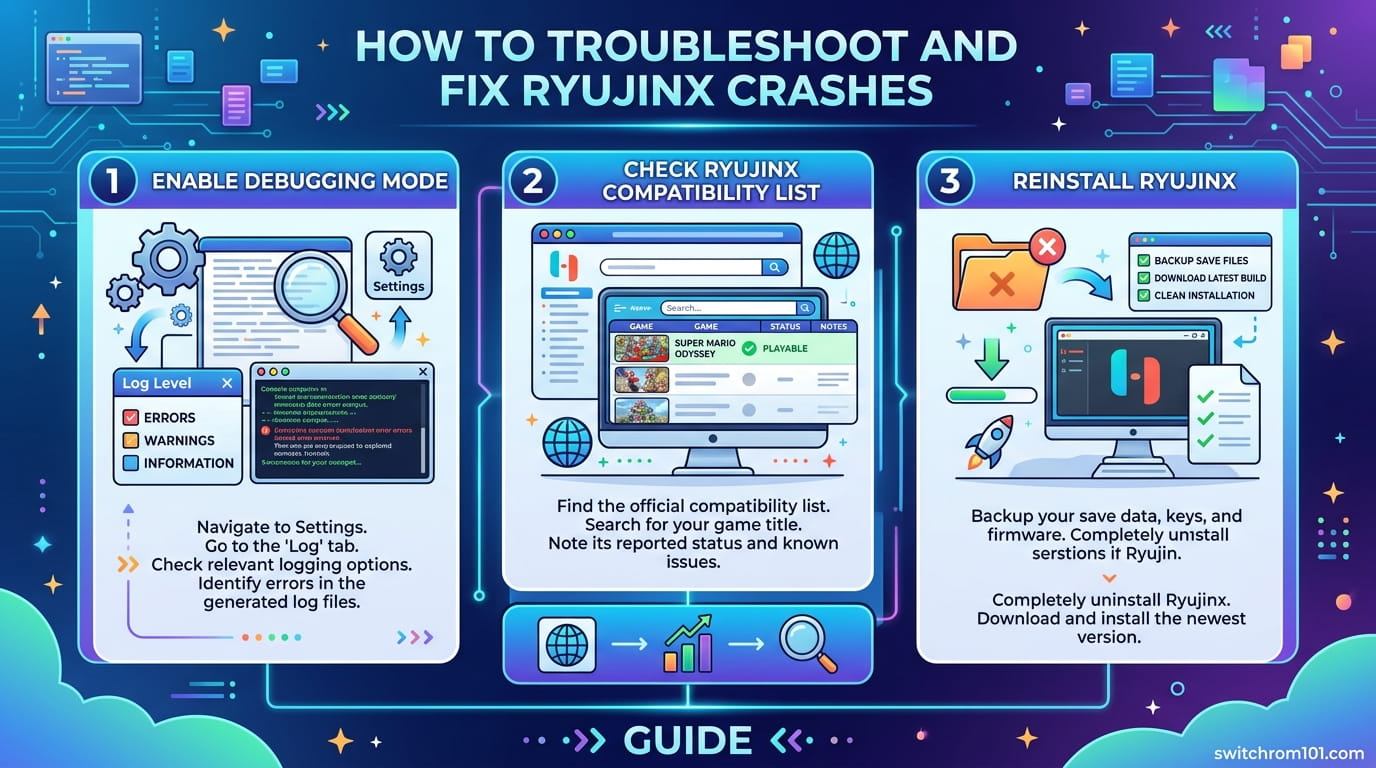
How to Troubleshoot and Fix Ryujinx Crashes
1. Enable Debugging Mode
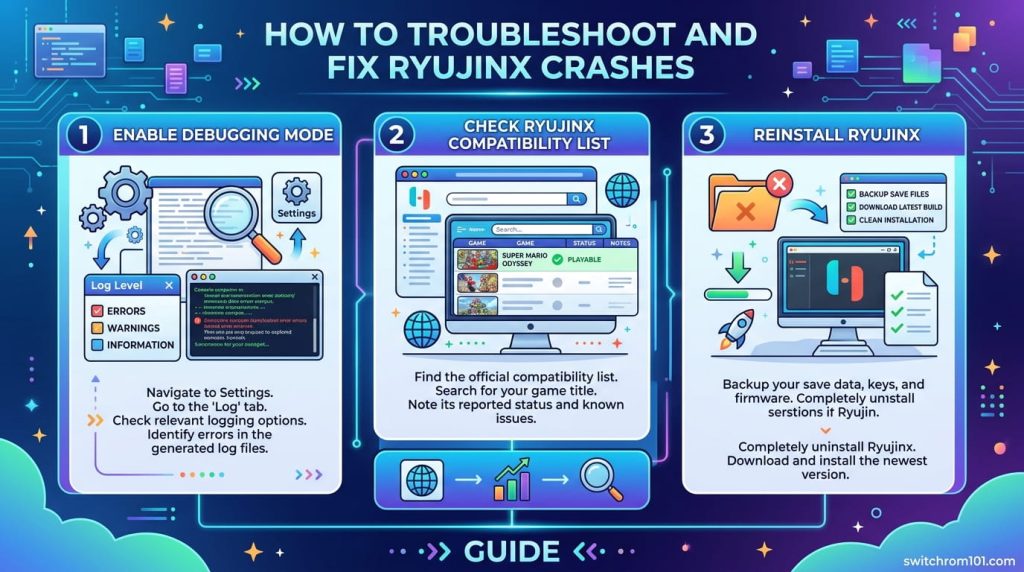
Ryujinx has a debugging mode that provides detailed logs, helping you identify the root cause of the crash.
- Steps:
- Open Ryujinx.
- Go to Options > Settings.
- Enable Debug Mode.
- Try running the game again. After the crash, check the log file in the logs folder within your Ryujinx directory to analyze the error.
2. Check Ryujinx Compatibility List
Not all games run smoothly on Ryujinx. Some games might have issues due to game-specific bugs or emulator limitations.
- Solution: Check the Ryujinx Compatibility List on the official website to see if your game is known to have issues. If your game is not listed, it could be that it’s not fully supported yet.
3. Reinstall Ryujinx
If none of the above solutions work, consider reinstalling Ryujinx. A fresh installation can help resolve any corrupt files or installation issues.
- Steps:
- Uninstall Ryujinx.
- Delete all Ryujinx-related files from the AppData folder (if applicable).
- Reinstall Ryujinx by downloading the latest version from the official Ryujinx website.
Conclusion:
If Ryujinx keeps crashing, it’s likely due to one of several common issues, such as outdated software, misconfigured settings, corrupted game files, or hardware limitations. By following the troubleshooting steps provided, you should be able to identify and fix the cause of the crashes. Updating Ryujinx, verifying game files, checking system requirements, and making sure your graphics drivers are up to date can resolve most issues.
If the problem persists, consider checking the Ryujinx forums or support channels for specific solutions related to your hardware or game.
Pokémon on Steam Deck Emulation Performance 2026: Yuzu and Ryujinx Setup
FAQ
1. Why does my Ryujinx keep crashing on startup?
Crashes on startup are typically caused by missing or incorrect keys, outdated Ryujinx version, or incompatible game files. Ensure that your prod.keys and title.keys are up-to-date and properly placed.
2. How do I update Ryujinx to the latest version?
You can update Ryujinx by downloading the latest version from the official Ryujinx website or using the Ryujinx auto-update feature in the settings.
3. Can I fix Ryujinx crashes by changing graphics settings?
Yes, switching the graphics backend to Vulkan or OpenGL might help with crashes. Experiment with different resolution settings and enable asynchronous shader compilation for improved performance.
{ “@context”: “https://schema.org”, “@type”: “FAQPage”, “mainEntity”: [ { “@type”: “Question”, “name”: “Why does my Ryujinx keep crashing on startup?”, “acceptedAnswer”: { “@type”: “Answer”, “text”: “Crashes on startup are typically caused by missing or incorrect keys, outdated Ryujinx version, or incompatible game files. Ensure that your prod.keys and title.keys are up-to-date and properly placed.” } }, { “@type”: “Question”, “name”: “How do I update Ryujinx to the latest version?”, “acceptedAnswer”: { “@type”: “Answer”, “text”: “You can update Ryujinx by downloading the latest version from the official Ryujinx website or using the Ryujinx auto-update feature in the settings.” } }, { “@type”: “Question”, “name”: “Can I fix Ryujinx crashes by changing graphics settings?”, “acceptedAnswer”: { “@type”: “Answer”, “text”: “Yes, switching the graphics backend to Vulkan or OpenGL might help with crashes. Experiment with different resolution settings and enable asynchronous shader compilation for improved performance.” } } ] }
(GameOverlord) has been involved in Nintendo Switch emulation
since 2019. She owns two Nintendo Switch consoles and a Steam Deck OLED,
and has hands-on tested over 40 Switch titles across Ryujinx and
Sudachi emulators. Her background is in consumer electronics and
she has followed emulation law developments in the US, UK, and EU
since the Yuzu shutdown in 2024. SwitchROM101 was built to fill the
gap left by misleading ROM sites — giving gamers accurate, legal,
and technically correct information without hosting any game files.