How to Install Homebrew on Nintendo Switch Safely Beginner-Friendly
Homebrew on the Nintendo Switch allows users to run community-made apps, utilities, and tools that aren’t officially available through Nintendo. From save managers and emulators to system tools and custom themes, homebrew unlocks powerful customization options.
However, installing homebrew incorrectly can lead to permanent console bans, data loss, or even a bricked device. That’s why safety, legality, and preparation matter.
In this guide, you’ll learn how to install homebrew on a Nintendo Switch safely, what you need before starting, and the best practices to avoid common risks. This article is written for beginners and focuses on education and safety, not piracy.
How to Install Homebrew on Nintendo Switch Safely
Installing homebrew safely depends on your Switch model, system version, and how carefully you follow each step. Not all Nintendo Switch consoles are compatible with homebrew in the same way.
What Is Nintendo Switch Homebrew?
Homebrew refers to unofficial software created by independent developers. These apps run on the Nintendo Switch outside of the official Nintendo ecosystem.
Common Uses of Homebrew (Safe & Legal)
- File managers
- Save data backups
- System monitoring tools
- Media players
- Custom themes
- Educational or experimental apps
⚠️ Important: Homebrew itself is legal, but using pirated games or copyrighted content is illegal and risky.
Also Learn MIG Switch Guide: How It Works, Risks & Legal Facts
Check If Your Nintendo Switch Supports Homebrew
Before doing anything, you must confirm whether your Switch is compatible.
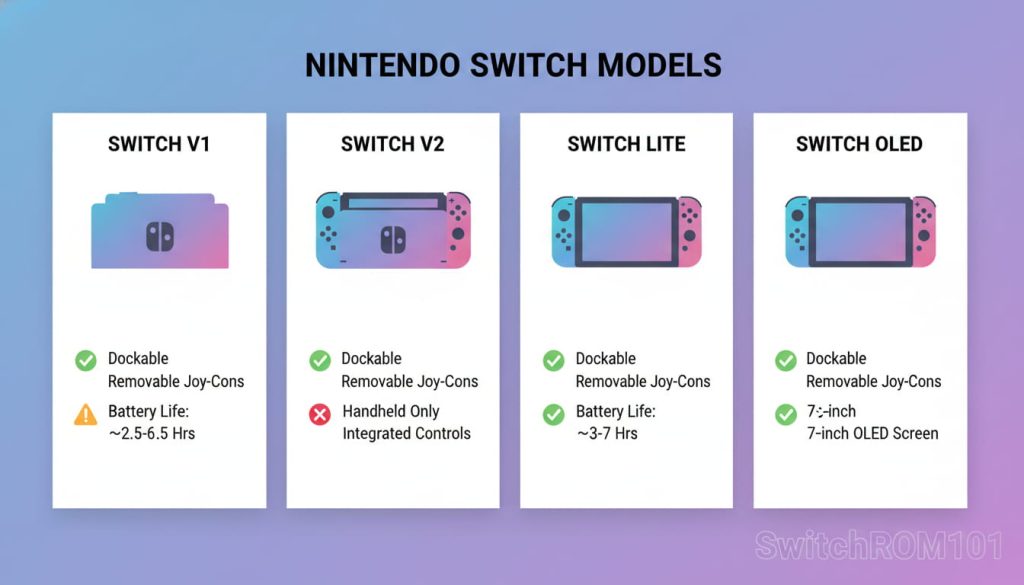
1. Identify Your Switch Model
Nintendo Switch models fall into three categories:
- Unpatched (Early 2017–2018 models) – Easiest and safest for beginners
- Patched / Mariko / Lite / OLED models – Require advanced methods or hardware mods
You can check your serial number on the back of the console to determine compatibility.
✅ Best for beginners: Unpatched Switch models
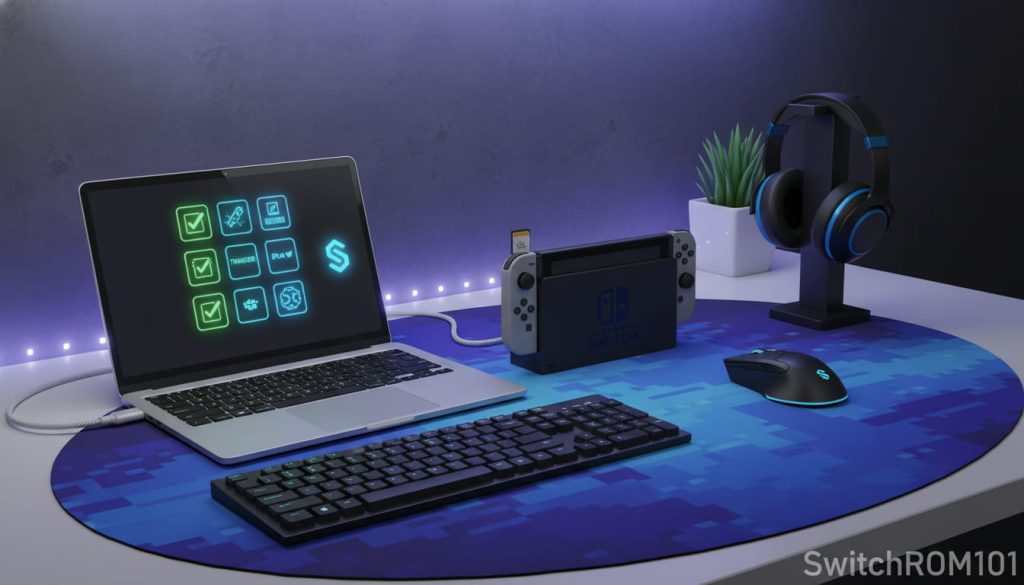
What You Need Before Installing HomebrewEssential Requirements
- Compatible Nintendo Switch
- microSD card (32GB or larger recommended)
- Card reader or PC with SD slot
- USB-C cable
- Fully charged Switch
- Internet connection
- Backup of all important data
Safety Preparation Checklist
✔ Back up save data
✔ Update system settings carefully
✔ Disable auto-updates (recommended)
✔ Never sign in to your main Nintendo account during homebrew use
How to Install Homebrew on Nintendo Switch (Safe Method)
This overview explains the safe workflow, not exploit code or illegal steps.
Step 1 – Prepare the microSD Card
- Format the microSD card to FAT32
- Create necessary folders for homebrew files
- Insert the card into your Switch
Step 2 – Enter Safe Boot Mode (RCM)
For compatible models, the Switch can enter Recovery Mode (RCM), which allows temporary payload loading without modifying system files.
✔ This method is non-permanent and safer than permanent system modifications.
Step 3 – Load the Homebrew Menu
Once in RCM mode:
- A payload is sent temporarily
- The Homebrew Menu loads without overwriting the system
- Homebrew apps can be launched safely
Step 4 – Use Homebrew Responsibly
- Stick to trusted homebrew apps
- Avoid online services while homebrew is active
- Exit properly before rebooting
Best Safety Practices (Very Important)
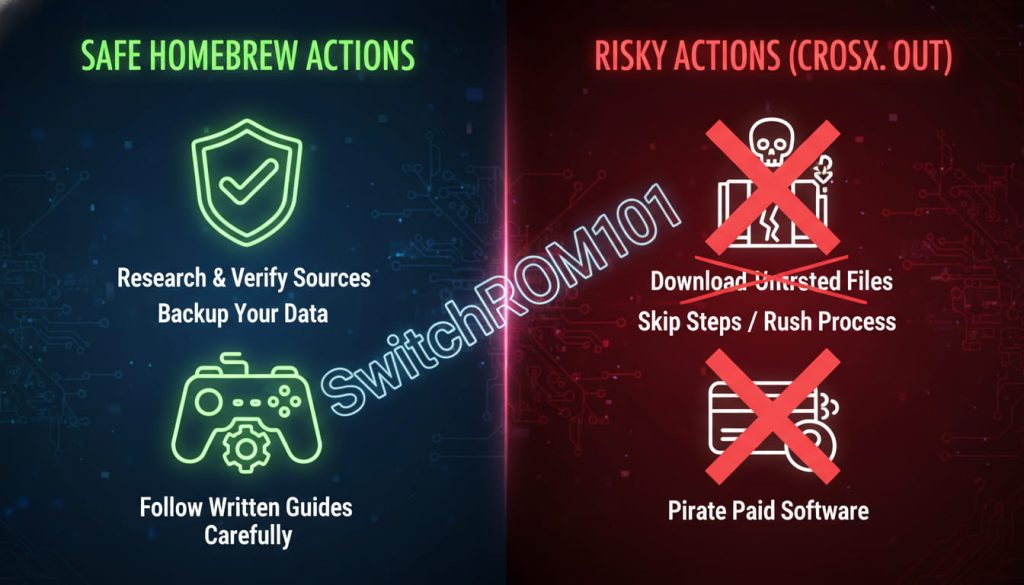
Do’s
- Do use airplane mode while running homebrew
- Do keep NAND backups in multiple locations
- Do update homebrew tools regularly
- Do research every app before installing
Don’ts
- ❌ Don’t install pirated games or ROMs
- ❌ Don’t connect to Nintendo servers with modified software
- ❌ Don’t follow random YouTube guides without verification
- ❌ Don’t rush the process
Can You Get Banned for Homebrew?
Short Answer: Yes, if you’re careless.
Nintendo actively monitors:
- Modified system files
- Unauthorized online activity
- Pirated content
How to Reduce Ban Risk
- Use homebrew offline only
- Never use your primary Nintendo account
- Keep stock firmware separate from homebrew usage
⚠️ No method is 100% ban-proof — safety reduces risk, not eliminates it.
Is Homebrew Legal?
Homebrew itself is legal in many regions when:
- You own the console
- You don’t bypass DRM for piracy
- You don’t distribute copyrighted content
Always follow local laws and Nintendo’s terms.
FAQ: How to Install Homebrew on Nintendo Switch Safely
1. Is homebrew safe for beginners?
Yes, if you have a compatible Switch and follow safe, non-permanent methods.
2. Can homebrew damage my Switch?
Improper installation can cause issues, but safe methods minimize risk significantly.
3. Do I need to hack my Switch permanently?
No. Temporary payload methods are safer and recommended for beginners.
4. Will installing homebrew void my warranty?
Yes, modifying your console may void warranty coverage.
5. Can I remove homebrew later?
Yes. Temporary methods leave no permanent changes when done correctly.
Installing homebrew on a Nintendo Switch can unlock powerful customization and learning opportunities — but safety must always come first. Understanding your console model, preparing backups, and using non-permanent methods greatly reduce risk.
If you’re a beginner, start slow, stay informed, and never compromise safety for shortcuts.
Thinking about installing homebrew on your Nintendo Switch?
Explore our guides on homebrew safety, Switch compatibility, and legal risks before getting started — and always play smart.

(GameOverlord) has been involved in Nintendo Switch emulation
since 2019. She owns two Nintendo Switch consoles and a Steam Deck OLED,
and has hands-on tested over 40 Switch titles across Ryujinx and
Sudachi emulators. Her background is in consumer electronics and
she has followed emulation law developments in the US, UK, and EU
since the Yuzu shutdown in 2024. SwitchROM101 was built to fill the
gap left by misleading ROM sites — giving gamers accurate, legal,
and technically correct information without hosting any game files.