💻⚙️How to Install Ryujinx Emulator for Switch Games on Linux
Ryujinx is a popular Nintendo Switch emulator that allows you to play your favorite Switch games on Linux systems. Whether you’re looking to play The Legend of Zelda: Breath of the Wild, Super Mario Odyssey, or other Switch titles, Ryujinx offers a smooth experience with great compatibility. In this guide, we’ll walk you through the process of installing Ryujinx on your Linux machine, including the necessary setup for emulators, Switch firmware, and key files to get you started.
System Requirements for Running Ryujinx on Linux
Before installing Ryujinx, make sure your Linux system meets the minimum requirements:
Minimum System Requirements:
- OS: A modern version of Linux (Ubuntu 20.04 or higher is recommended).
- CPU: At least an Intel Core i5 or AMD Ryzen 5 (quad-core or better).
- GPU: NVIDIA GTX 1060 or AMD Radeon RX 580 or higher (Vulkan-compatible GPU recommended).
- RAM: 8GB or more.
- Storage: At least 4GB of available space for the emulator and Switch games.
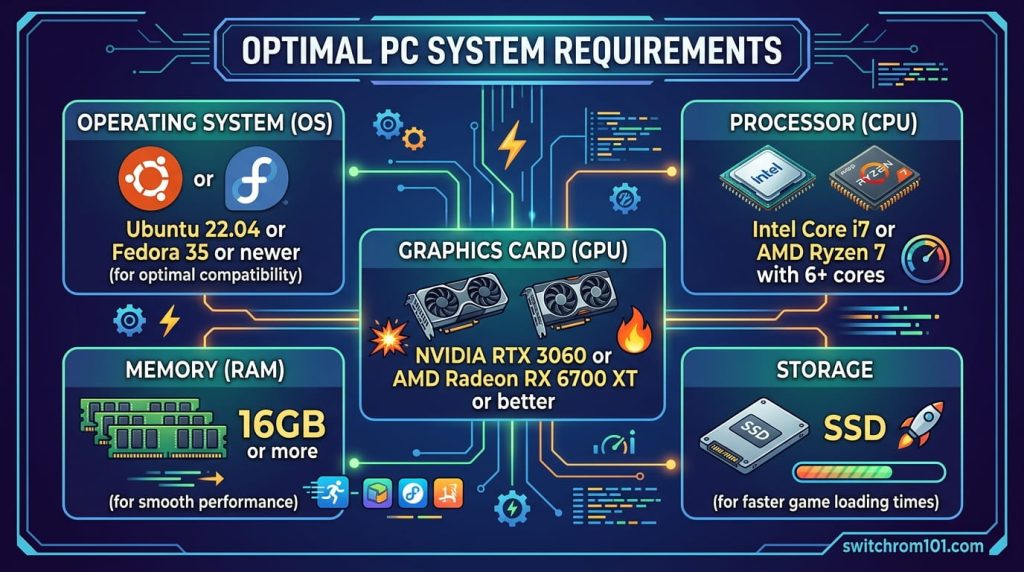
Recommended System Requirements:
- OS: Ubuntu 22.04 or Fedora 35 or newer for optimal compatibility.
- CPU: Intel Core i7 or AMD Ryzen 7 with 6+ cores.
- GPU: NVIDIA RTX 3060 or AMD Radeon RX 6700 XT or better.
- RAM: 16GB or more for smooth performance.
- Storage: SSD for faster game loading times.
Step-by-Step Guide to Installing Ryujinx on Linux
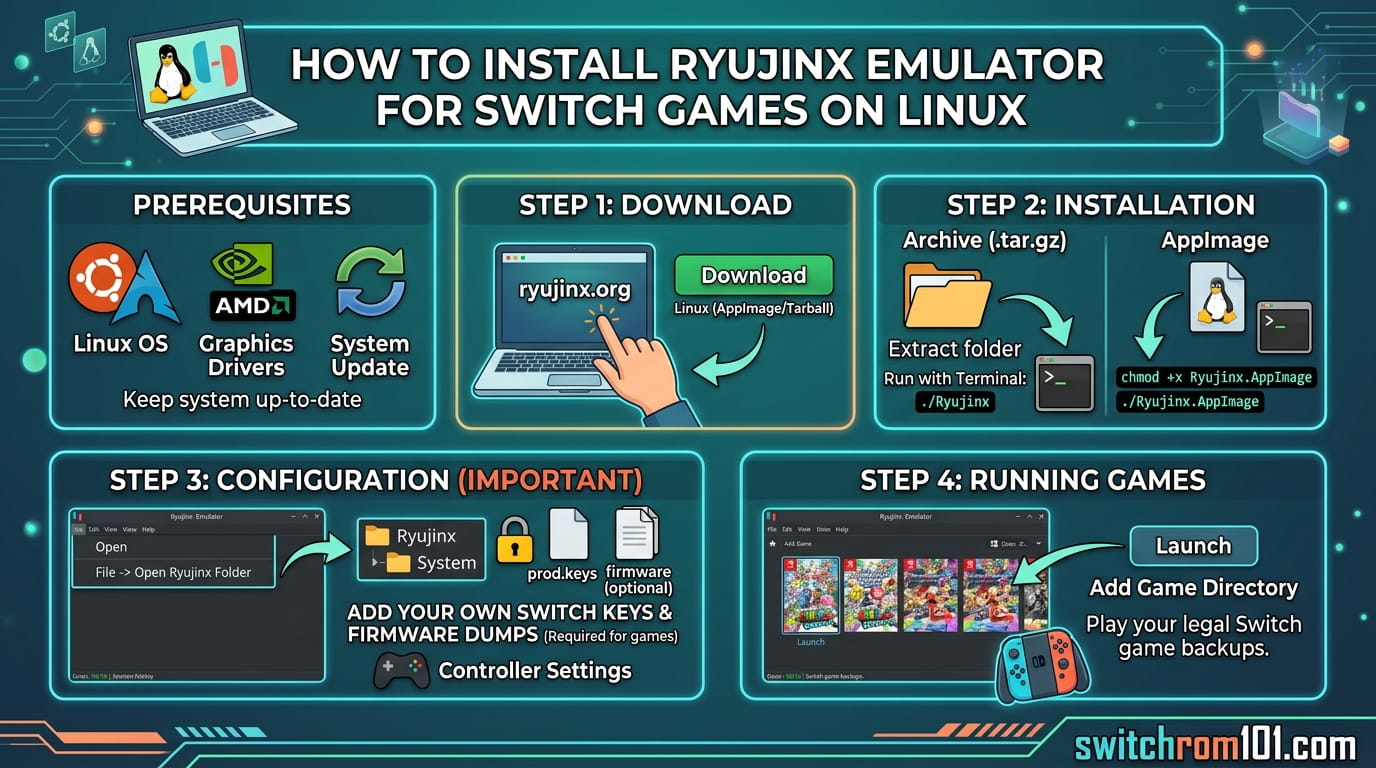
Step 1: Install Dependencies
Before installing Ryujinx, you need to make sure that your Linux system has the necessary dependencies installed, such as Vulkan drivers and .NET Core.
- Update your system:
Open a terminal and run the following command to update your system:
sudo apt update && sudo apt upgrade -y - Install Vulkan drivers:
If you have an NVIDIA GPU, install the Vulkan drivers with: sudo apt install nvidia-driver vulkan-utils
For AMD GPUs, install the Vulkan packages for AMDGPU:
sudo apt install mesa-vulkan-drivers vulkan-utils - Install .NET Core:
Ryujinx requires .NET Core for its UI and some other functionalities. Install it by following these steps: sudo apt install -y dotnet-sdk-6.0
Alternatively, visit the official .NET website to download the latest SDK for your Linux distribution.
Step 2: Download and Install Ryujinx
- Visit the official Ryujinx GitHub repository: Ryujinx GitHub.
- Go to the releases section and download the Linux build of Ryujinx. Download the tar.gz file for your Linux version. Alternatively, if you prefer using flatpak (a popular Linux package format), you can install Ryujinx from Flathub using the following command: flatpak install flathub org.ryujinx.Ryujinx
- Once downloaded, extract the tar.gz file to a folder of your choice: tar -xvzf Ryujinx-linux.tar.gz
- Change into the directory where you extracted Ryujinx: cd Ryujinx/
- To run Ryujinx, use the following command: ./Ryujinx
Step 3: Install Switch Firmware and Keys
To run Switch games on Ryujinx, you’ll need the Switch firmware and keys. These files must be dumped from your own Nintendo Switch console.
- Obtain prod.keys:
- Use the Lockpick_RCM tool to dump the prod.keys and title.keys files from your Switch console.
- These files are necessary for Ryujinx to run Switch games.
- Install Firmware:
- Dump the firmware files (e.g., boot0, boot1, recovery.img) from your Switch console.
- These files are needed for the emulator to simulate the Switch hardware.
- Copy Keys and Firmware to Ryujinx:
- Open Ryujinx and go to File > Open Ryujinx Folder.
- Place your prod.keys, title.keys, and firmware files in the appropriate directories within the Ryujinx folder.
Step 4: Set Up Controller for Ryujinx
- Connect a controller to your Linux system (such as a Switch Pro Controller, Xbox controller, or USB gamepad).
- Go to Options > Input in Ryujinx and configure your controller mappings.
- If you’re using Joy-Con controllers, make sure they are paired properly via Bluetooth before configuring them in Ryujinx.
Step 5: Load and Play Games
- Dump your game from your Nintendo Switch using a tool like Hekate or NSP/NSZ dumping software.
- Place the game ROM (either NSP or XCI format) in a folder on your PC.
- In Ryujinx, click File > Load Game and select the game ROM to start playing.
Steam Deck Switch Emulation in 2026: Everything You Need to Know
Performance Tips for Playing Switch Games on Linux with Ryujinx
1. Use Vulkan for Better Performance
Vulkan generally offers better performance than OpenGL. Make sure Vulkan is set as your graphics backend in the Ryujinx graphics settings.
2. Lower Internal Resolution
If you experience lag, try lowering the internal resolution to 720p or 1080p. Higher resolutions (e.g., 4K) can be demanding on your CPU and GPU.
3. Enable Asynchronous Shader Compilation
Enable Asynchronous Shader Compilation under the Graphics Settings to prevent stuttering during gameplay.
4. Use Multi-Core CPU Emulation
Ensure that multi-core CPU emulation is enabled in Ryujinx to maximize performance and utilize all cores on your Linux machine.
Troubleshooting Common Issues in Ryujinx on Linux
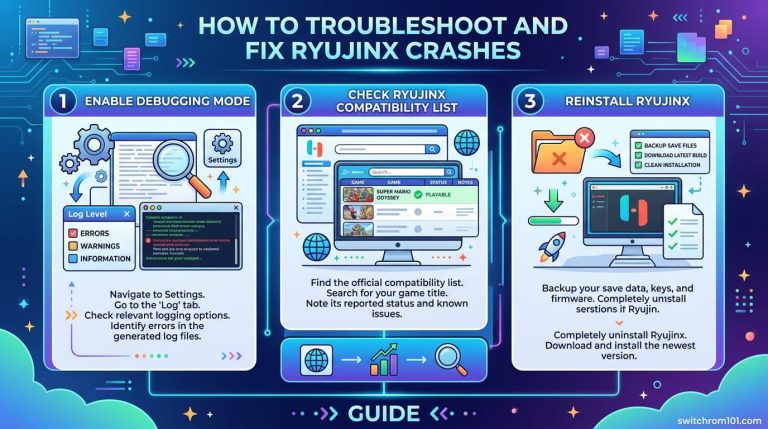
1. Game Crashes on Startup
- Make sure that you’ve dumped the correct firmware and keys. Reinstalling them may help.
- Verify that your Ryujinx is up-to-date, as new versions often fix compatibility issues.
2. Poor Performance or Lag
- Lower the resolution to 720p for smoother gameplay.
- Ensure you are using Vulkan as the graphics backend.
- Disable unnecessary background programs to free up system resources.
3. No Sound in Games
- Ensure that your audio drivers are installed correctly on Linux. You may need to configure audio settings within Ryujinx.
How to Install Ryujinx Emulator for Switch Games on Linux
By following this guide, you’ll be able to successfully install Ryujinx on your Linux system and play your favorite Switch games with ease. With the right settings, you can enjoy smooth gameplay and great performance. Remember to update your system and Ryujinx regularly for optimal performance, and enjoy the world of Nintendo Switch emulation on your Linux PC!
FAQ
1. Is Ryujinx the best Switch emulator for Linux?
Yes, Ryujinx is one of the best Switch emulators for Linux, offering great performance and compatibility with many Switch games.
2. Do I need a powerful PC to run Ryujinx?
While Ryujinx can run on mid-range PCs, high-end systems with better CPU and GPU performance will provide the best experience, especially at higher resolutions.
3. Can I use my Switch Pro Controller with Ryujinx on Linux?
Yes, Ryujinx supports a wide variety of controllers, including the Switch Pro Controller, Joy-Cons, and USB controllers, on Linux.
Best Flash Cart for Switch Backups: Comparison + What Matters Most

(GameOverlord) has been involved in Nintendo Switch emulation
since 2019. She owns two Nintendo Switch consoles and a Steam Deck OLED,
and has hands-on tested over 40 Switch titles across Ryujinx and
Sudachi emulators. Her background is in consumer electronics and
she has followed emulation law developments in the US, UK, and EU
since the Yuzu shutdown in 2024. SwitchROM101 was built to fill the
gap left by misleading ROM sites — giving gamers accurate, legal,
and technically correct information without hosting any game files.