How to emulate motion controls on citra
Many Nintendo 3DS games rely on motion controls for gameplay, such as camera movement, aiming, or puzzles. If you’re using the Citra emulator, you might wonder how to replicate those motion features on your PC.
In this guide, you’ll learn how to emulate motion controls on Citra, including setup using mouse, keyboard, and controllers, so you can enjoy a smooth and complete gaming experience.
What Are Motion Controls in Citra?
Motion controls simulate the gyroscope and accelerometer found in the original Nintendo 3DS. Games like:
- The Legend of Zelda: Ocarina of Time 3D
- Super Mario 3D Land
- Luigi’s Mansion: Dark Moon
use motion input for specific mechanics.
Citra allows you to emulate these controls using:
- Mouse movement
- Keyboard input
- Game controllers (with gyro support)
Method 1: Enable Motion Controls Using Mouse (Easiest Way)
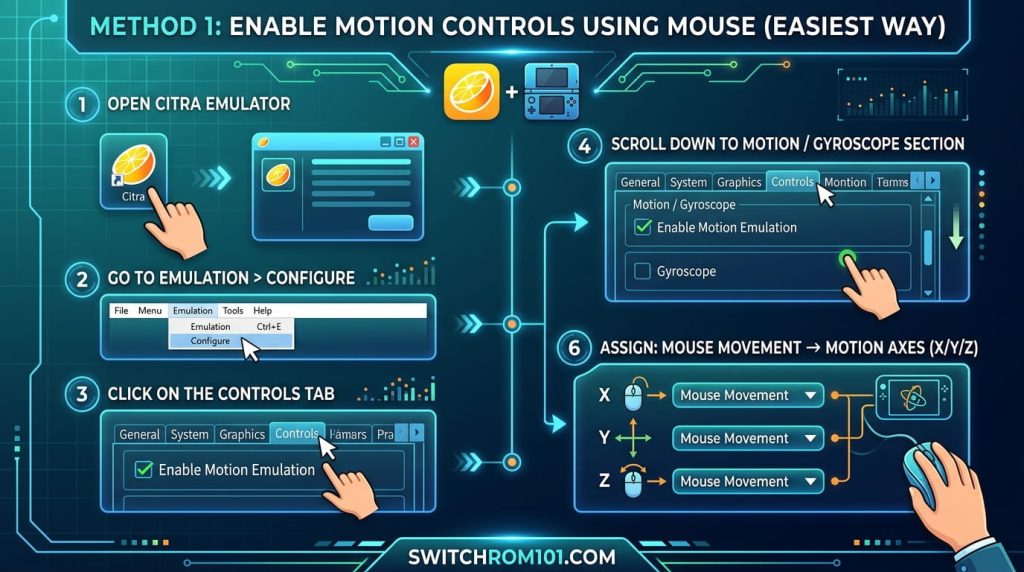
Step-by-Step Setup
- Open Citra Emulator
- Go to Emulation > Configure
- Click on the Controls tab
- Scroll down to Motion / Gyroscope section
- Enable:
- Motion Emulation
- Assign:
- Mouse movement → motion axes (X/Y/Z)
How It Works
- Moving your mouse simulates tilting the device
- Left-click + drag can act as motion input in some setups
✅ Best for beginners
Pokémon on Steam Deck Emulation Performance 2026: Yuzu and Ryujinx Setup
Method 2: Use Keyboard for Motion Input
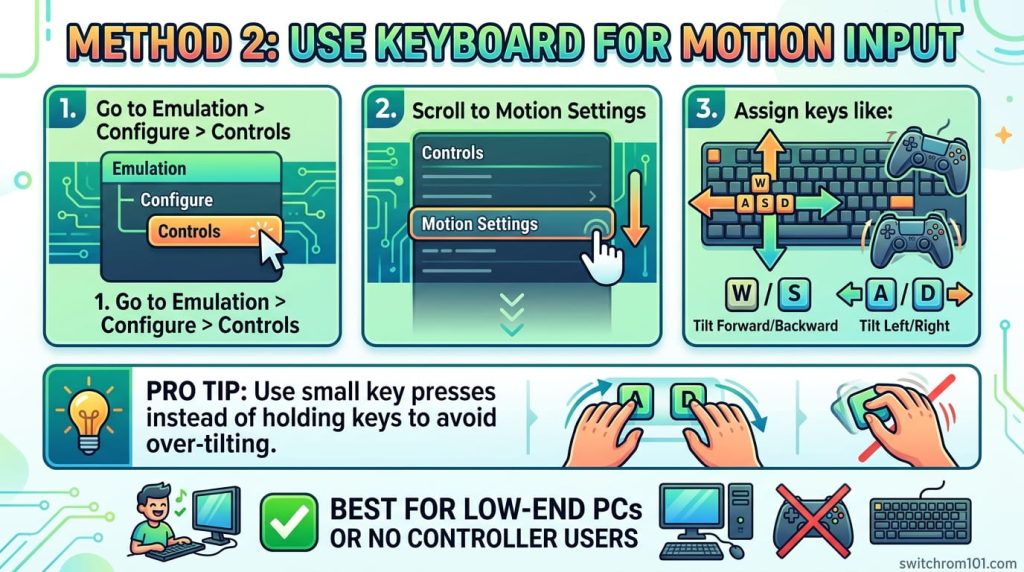
Steps
- Go to Emulation > Configure > Controls
- Scroll to Motion Settings
- Assign keys like:
- W / S → Tilt Forward/Backward
- A / D → Tilt Left/Right
Pro Tip
Use small key presses instead of holding keys to avoid over-tilting.
✅ Best for low-end PCs or no controller users
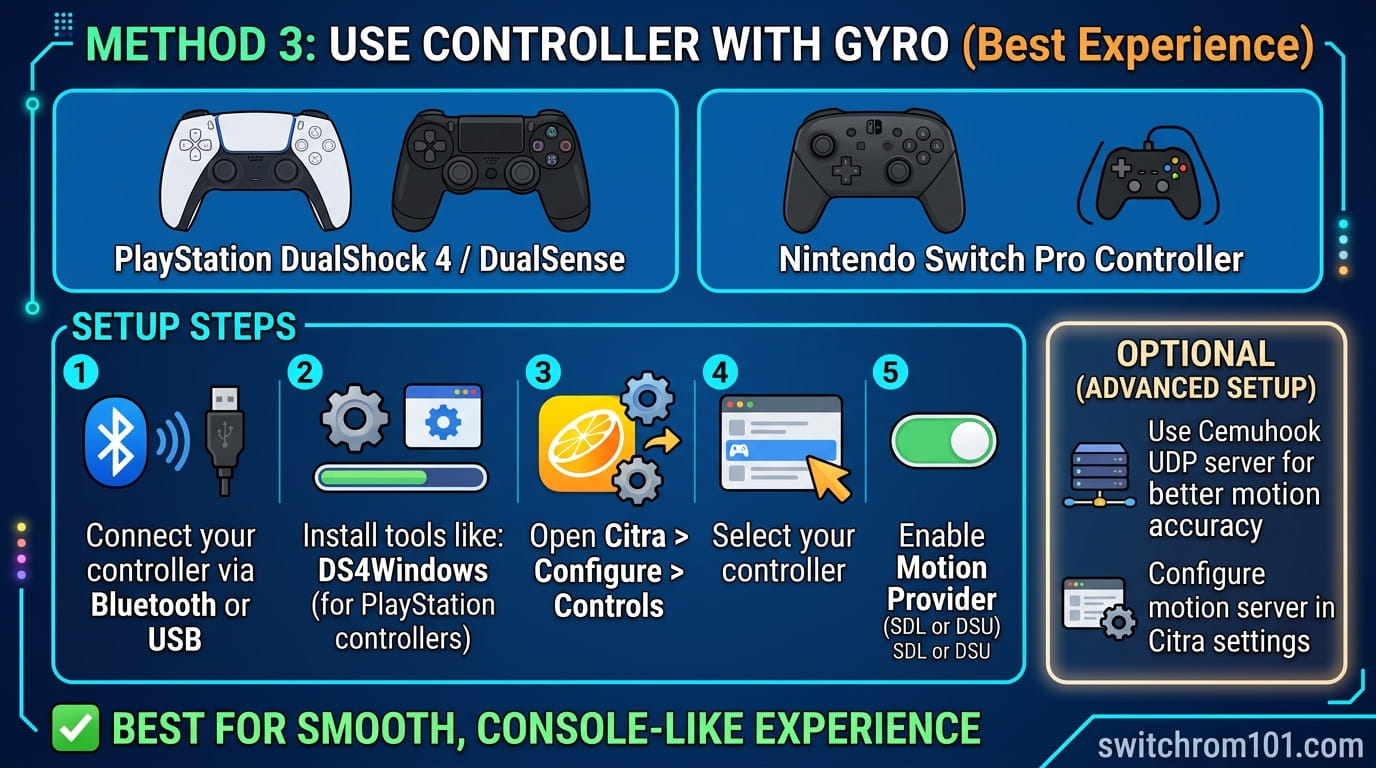
Method 3: Use Controller with Gyro (Best Experience)
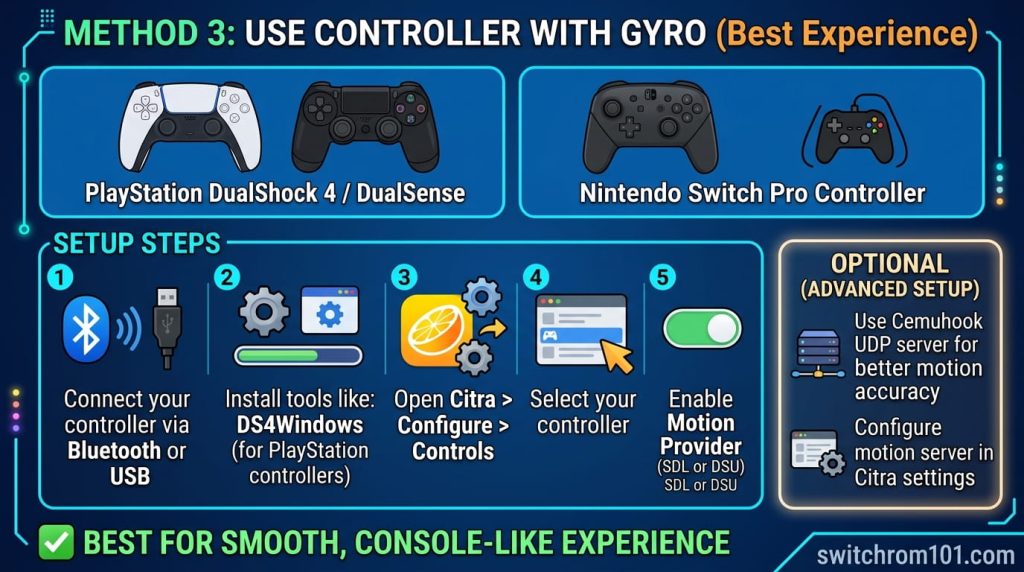
If you want real motion-like gameplay, use a controller with gyro support, such as:
- PlayStation DualShock 4 / DualSense
- Nintendo Switch Pro Controller
Setup Steps
- Connect your controller via Bluetooth or USB
- Install tools like:
- DS4Windows (for PlayStation controllers)
- Open Citra > Configure > Controls
- Select your controller
- Enable Motion Provider (SDL or DSU)
Optional (Advanced Setup)
- Use Cemuhook UDP server for better motion accuracy
- Configure motion server in Citra settings
✅ Best for smooth, console-like experience
Fix Motion Controls Not Working in Citra
If motion isn’t working, check:
1. Motion Not Enabled
- Go to settings and ensure Motion Emulation is ON
2. Wrong Input Mapping
- Reassign motion axes correctly
3. Controller Not Detected
- Reconnect controller or update drivers
4. Game Doesn’t Require Motion
- Some games don’t use motion controls at all
Best Settings for Smooth Motion Controls
- Enable Accurate Multiplication (if available)
- Keep sensitivity low to medium
- Avoid high DPI mouse (causes jitter)
- Use 60 FPS stable gameplay for better response
Pro Tips (Advanced Users Only)
- Combine mouse + keyboard for hybrid control
- Use gyro controller for aiming games
- Adjust dead zones for smoother movement
- Use external tools for fine-tuning motion input
Conclusion
Emulating motion controls in Citra is easier than most people think. Whether you use:
- Mouse (simple setup)
- Keyboard (basic control)
- Controller with gyro (best experience)
You can fully enjoy motion-based 3DS games on PC without missing any gameplay features.
FAQ
1. Can Citra fully emulate motion controls?
Yes, Citra supports motion emulation using mouse, keyboard, and compatible controllers.
2. What is the best way to emulate motion in Citra?
Using a gyro-supported controller provides the most accurate and smooth experience.
3. Why are my motion controls not working?
Common reasons include incorrect settings, disabled motion input, or unsupported controllers.
Steam Deck Switch Emulation in 2026: Everything You Need to Know

(GameOverlord) has been involved in Nintendo Switch emulation
since 2019. She owns two Nintendo Switch consoles and a Steam Deck OLED,
and has hands-on tested over 40 Switch titles across Ryujinx and
Sudachi emulators. Her background is in consumer electronics and
she has followed emulation law developments in the US, UK, and EU
since the Yuzu shutdown in 2024. SwitchROM101 was built to fill the
gap left by misleading ROM sites — giving gamers accurate, legal,
and technically correct information without hosting any game files.