🕹️🛠️How to Fix Lag in Yuzu Emulator: Troubleshooting Guide
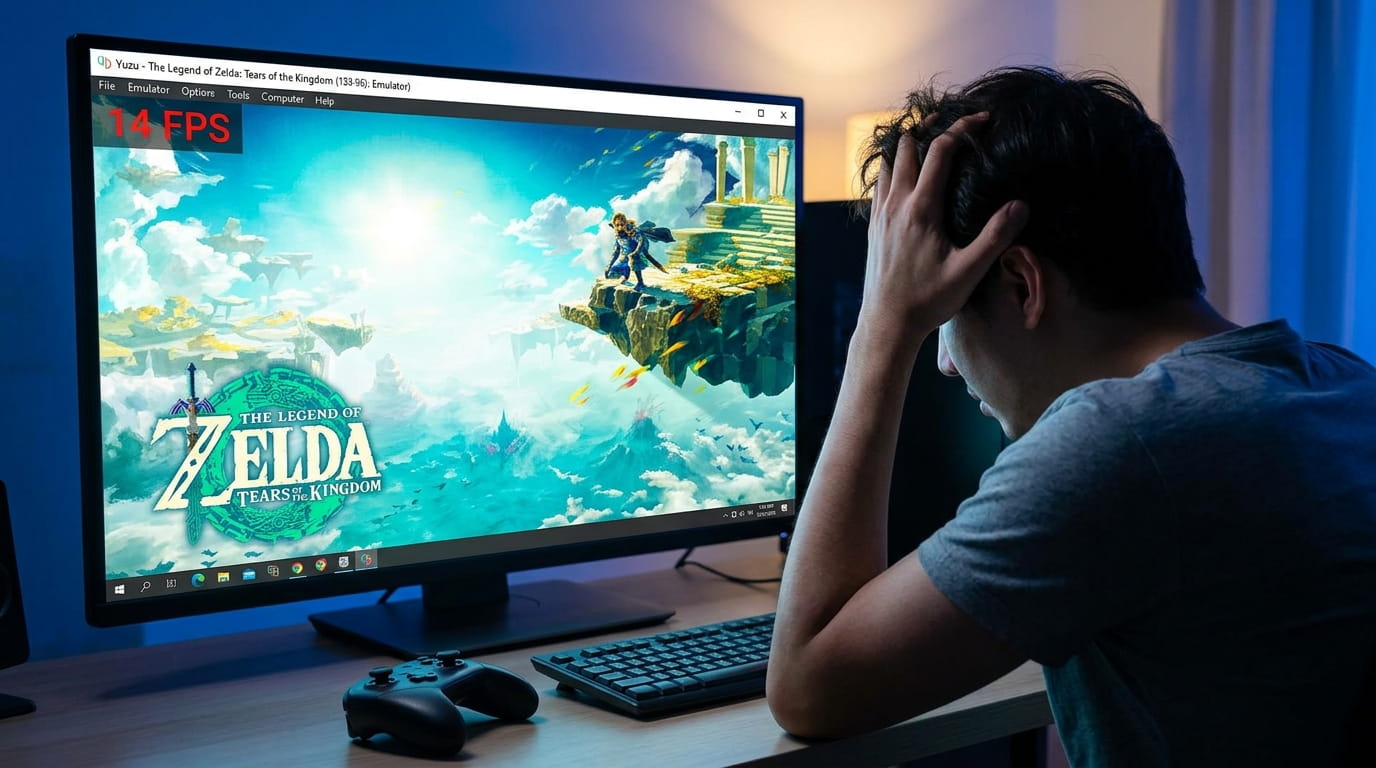
Yuzu is one of the most popular Nintendo Switch emulators for PC, but like any demanding software, it can sometimes suffer from lag or performance issues. Whether you’re playing Super Mario Odyssey, The Legend of Zelda: Breath of the Wild, or other titles, lag can ruin your gaming experience. In this troubleshooting guide, we’ll cover common causes of lag in Yuzu emulator and provide actionable solutions to help you enjoy smooth gameplay on your PC.
What Causes Lag in Yuzu Emulator?
Before we dive into troubleshooting, let’s first understand some of the common reasons for lag in Yuzu:
- GPU and CPU bottlenecks: Switch emulation requires both powerful CPU and GPU, and if your hardware is not up to the task, you may experience performance issues.
- Incorrect emulator settings: Using default settings without optimization can often lead to subpar performance.
- Outdated drivers: Graphics card drivers and Yuzu updates are crucial for optimal performance.
- High internal resolution: Yuzu allows users to play Switch games at higher resolutions, but it comes at the cost of performance, especially on mid-range or low-end PCs.
How to Fix Lag in Yuzu Emulator: Step-by-Step Troubleshooting
1. Update Yuzu to the Latest Version
Yuzu developers are constantly improving the emulator’s performance, so keeping it updated is essential to avoid bugs and improve performance.
- How to Update Yuzu:
- Open the Yuzu Emulator.
- Click on File in the top menu.
- Select Check for Updates to ensure you have the latest version of Yuzu.
- If an update is available, follow the instructions to update the emulator.
Regular updates often include performance improvements, bug fixes, and better support for new games.
2. Update Graphics Drivers
Outdated graphics card drivers can severely affect the performance of Yuzu. Ensuring that your GPU drivers are up-to-date can resolve issues with lag and improve game performance.
- How to Update GPU Drivers:
- For NVIDIA: Go to NVIDIA’s website and download the latest drivers for your GPU model or use GeForce Experience to automatically update drivers.
- For AMD: Visit AMD’s official website and download the latest drivers, or use Radeon Software for automatic updates.
- For Intel: Check for updates via Intel’s Driver & Support Assistant.
Once updated, restart your computer and check if the lag issue persists.
3. Adjust Yuzu Emulator Settings for Better Performance
One of the most effective ways to fix lag is by adjusting the settings within Yuzu to match your hardware’s capabilities.
- Graphics Settings:
- Open Yuzu and go to Emulation > Configure.
- Under Graphics, try lowering the internal resolution. A resolution of 720p or 900p will yield better performance if you’re experiencing lag.
- Disable anti-aliasing and shadows, which are more demanding on the GPU.
- CPU Settings:
- Go to the CPU tab in the Configure menu.
- Select Enable Multi-Core CPU Emulation. This will allow Yuzu to use more than one CPU core, improving performance.
- If your CPU is overheating or running at high usage, try adjusting the emulator speed limit in the CPU settings.
- Enable Asynchronous Shader Compilation:
- Go to the Graphics Settings and check the Asynchronous Shader Compilation box. This allows Yuzu to compile shaders in the background, reducing stuttering during gameplay.
- Vulkan vs OpenGL:
- Vulkan generally offers better performance than OpenGL for most systems. Try switching the graphics backend to Vulkan in the Graphics Settings for smoother gameplay.
4. Lower Internal Resolution and Use Dynamic Resolution
While Yuzu allows you to play Switch games at higher resolutions (e.g., 4K), this can be demanding on CPU and GPU.
- How to Lower Internal Resolution:
- In Yuzu, go to Graphics > Resolution.
- Select 720p or 1080p instead of higher resolutions.
- For smooth gameplay, set the resolution to 720p for most games, especially if you’re using a mid-range or budget PC.
- Enable Dynamic Resolution Scaling:
- In Yuzu, go to Graphics and check the Dynamic Resolution Scaling option. This automatically adjusts the resolution based on your system’s performance to ensure a smooth experience.
5. Close Background Applications and Unnecessary Processes
Many applications running in the background can eat up CPU and RAM, leaving less power for Yuzu.
- How to Close Unnecessary Processes:
- Open Task Manager (Windows) or Activity Monitor (Mac).
- Identify and close unnecessary applications, especially those that use a lot of CPU or RAM.
- Make sure to disable unnecessary startup programs from running when your system boots up.
6. Check for System Performance Bottlenecks
Your PC’s hardware may be the limiting factor in performance, especially when it comes to Switch emulation.
- CPU Bottleneck: Make sure you have a strong multi-core CPU for emulation. Consider upgrading if you have an older Intel Core i5 or AMD Ryzen 5.
- GPU Bottleneck: Ensure your GPU is capable of handling Switch emulation. NVIDIA GTX 1660 Ti or RTX 30 series cards are recommended for smooth emulation.
- RAM: Ensure that you have at least 8GB of RAM for running emulators, with 16GB being ideal.
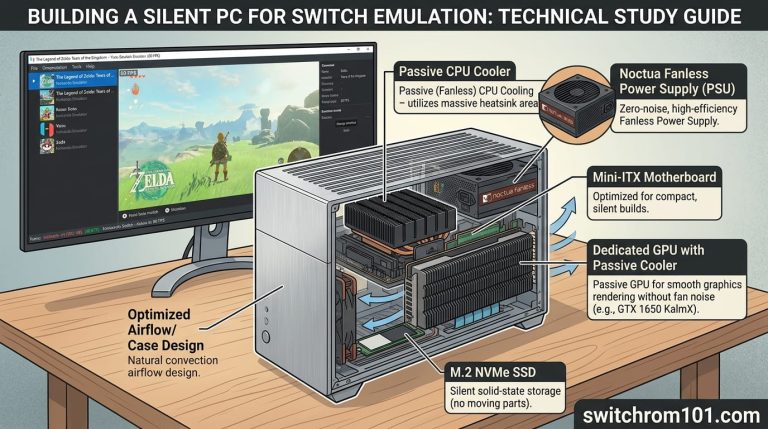
7. Use a Cooling Solution for Your PC
Overheating can cause lag as your CPU and GPU throttle to reduce heat. Ensure your PC is properly cooled to prevent performance dips.
- Use a high-quality CPU cooler or liquid cooling system.
- Ensure proper airflow within your case by using additional case fans if needed.
Top 5 CPUs for Running Switch Emulators Smoothly in 2026
How to Fix Lag in Yuzu Emulator
Lag in Yuzu can be frustrating, but with the right adjustments to your settings and hardware, you can enjoy smooth gameplay in Switch emulators. By keeping Yuzu updated, tweaking your graphics and CPU settings, and ensuring your PC hardware is optimized, you can significantly improve performance and reduce lag. Follow this troubleshooting guide and enjoy playing your favorite Switch games on your PC without the interruptions caused by lag.
FAQ
1. Why is my Yuzu emulator lagging?
Lag in Yuzu can be caused by several factors, including hardware limitations, incorrect settings, and outdated graphics drivers. Try lowering the internal resolution, adjusting emulator settings, and updating your drivers to improve performance.
2. Can I fix lag in Yuzu on a low-end PC?
Yes, you can reduce lag on a low-end PC by lowering the resolution, disabling advanced graphical settings, and using Vulkan as the graphics backend. However, performance may still be limited compared to higher-end systems.
3. How do I get the best performance in Yuzu for demanding games?
For demanding games like Breath of the Wild, increase the CPU core count, set the resolution to 1080p or 720p, and enable Asynchronous Shader Compilation. A high-performance GPU and multi-core CPU will also help in running these games smoothly.
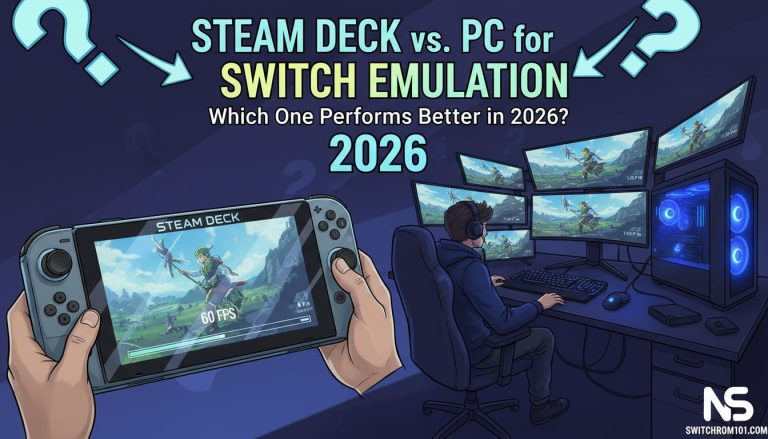
Steam Deck Switch Emulation in 2026: Everything You Need to Know

(GameOverlord) has been involved in Nintendo Switch emulation
since 2019. She owns two Nintendo Switch consoles and a Steam Deck OLED,
and has hands-on tested over 40 Switch titles across Ryujinx and
Sudachi emulators. Her background is in consumer electronics and
she has followed emulation law developments in the US, UK, and EU
since the Yuzu shutdown in 2024. SwitchROM101 was built to fill the
gap left by misleading ROM sites — giving gamers accurate, legal,
and technically correct information without hosting any game files.