🎮🛠️How to Install Switch Emulators on Mac (Ryujinx Setup)
If you own a Mac and are eager to emulate Nintendo Switch games, you’re in luck! In this guide, we’ll show you how to Install Switch Emulators on Mac, so you can enjoy your favorite Switch titles without the need for an actual Switch console. We’ll cover the entire setup process for both emulators, from downloading to configuration, and explain the best settings to achieve smooth gameplay.
What Is Ryujinx and Yuzu?
- Ryujinx and Yuzu are the two most popular Nintendo Switch emulators for PC and Mac. Both of these emulators are open-source and allow you to play Switch games on your computer by mimicking the Switch hardware.
- Yuzu is known for its performance and compatibility, especially with AAA titles, while Ryujinx offers great stability and smoother performance on certain games, especially for those with lower-end hardware.
How to Install Ryujinx on Mac
Step 1: Check System Requirements
Before you start, make sure your Mac meets the minimum requirements for running Ryujinx:
- macOS 10.13 or higher (preferably macOS 11 or higher for better performance).
- 4GB of RAM (8GB or more is recommended for smoother gameplay).
- A decent GPU (Ryujinx can run on integrated graphics but is much better with a dedicated GPU).
Step 2: Download Ryujinx
- Visit the official Ryujinx website: https://ryujinx.org/
- Go to the Downloads section and select the macOS version.
- Download the latest stable build of Ryujinx for macOS.
Step 3: Install Ryujinx on Your Mac
- Open the downloaded .dmg file.
- Drag the Ryujinx application to the Applications folder.
- Once copied, eject the .dmg file and open Ryujinx from your Applications folder.
Step 4: Set Up Ryujinx
- The first time you open Ryujinx, you may be prompted to allow Ryujinx to run since it’s from an unidentified developer. Click Open.
- Install the necessary files when prompted. Ryujinx will automatically download the Switch keys and firmware files.
- Dump your Switch keys using the homebrew method if you don’t have them. You will also need to dump the firmware from your Switch.
Step 5: Configure Settings
- Open Ryujinx, go to Options, and select Settings.
- Set up your graphics options (consider lowering the resolution to 720p or 1080p for smoother gameplay).
- Under Input, set up your controller (you can use a Switch Pro Controller, Joy-Cons, or a USB controller).
Step 6: Load Games
- Go to the File tab and select Open Ryujinx Folder.
- Place your Switch game ROMs in the folder (make sure you legally own the games).
- You can now load and play games directly from Ryujinx on your Mac.
How to Install Yuzu on Mac
Step 1: Check System Requirements
To ensure that Yuzu runs smoothly on your Mac, check the following:
- macOS 10.14 or higher (latest macOS version recommended).
- 8GB of RAM (at least 16GB is ideal for more demanding games).
- A dedicated GPU (e.g., AMD Radeon or NVIDIA graphics card for the best experience).
Step 2: Download Yuzu
- Visit the official Yuzu website: https://yuzu-emu.org/
- Click on the Download button for macOS.
- Download the latest stable version of Yuzu for macOS.
Step 3: Install Yuzu on Your Mac
- Open the .dmg file that you downloaded.
- Drag the Yuzu application to your Applications folder.
- Once done, open Yuzu from your Applications folder.
Step 4: Set Up Yuzu
- Install the necessary files such as Switch keys and firmware. Just like Ryujinx, you will need to dump these files from your Switch.
- Configure the settings in Yuzu:
- Go to Emulation > Configure.
- Under Graphics, select the OpenGL or Vulkan backend (depending on your Mac’s GPU).
- Set the internal resolution to 720p or 1080p for better performance on lower-end systems.
Step 5: Configure Input
- Connect your controller (Switch Pro controller or USB controller).
- Go to Controls > Configure and set up your controller for use with Yuzu.
Step 6: Load Games
- Go to the File tab and select Load File to add your Switch ROMs.
- Browse to the location where you saved your Switch games.
- Yuzu will now display the games, and you can select them to start playing.
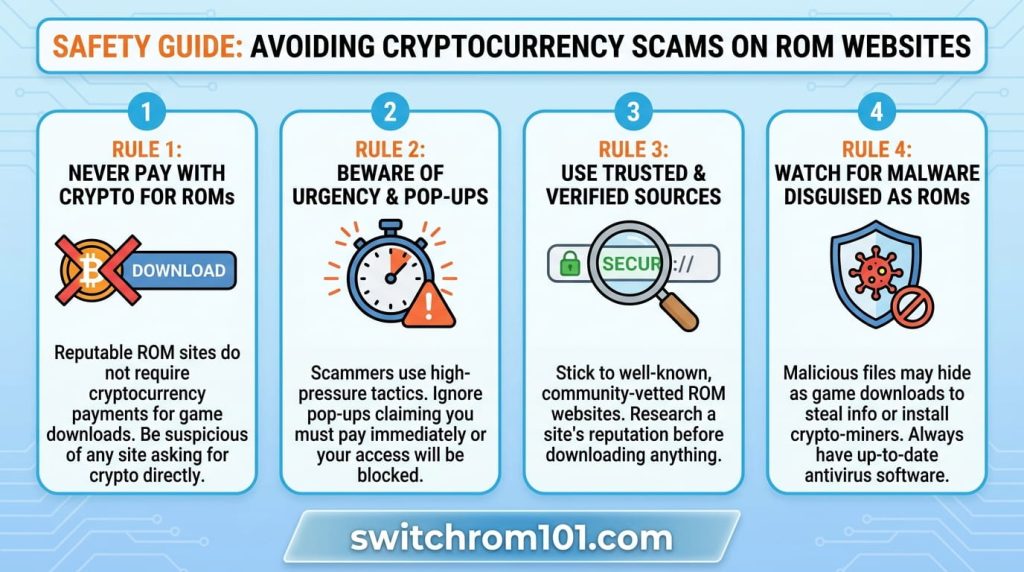
Are Switch ROM Websites Safe? Risks of Malware & Scams Explained
Performance Tips for Install Switch Emulators on Mac
1. Use the Right Graphics Backend
- Yuzu and Ryujinx support both OpenGL and Vulkan, with Vulkan being the preferred backend for better performance.
- However, on older Macs with integrated graphics, OpenGL may provide more stable performance.
2. Lower Resolution for Smooth Gameplay
- While emulation can run Switch games at 1080p or 4K, this can put a heavy load on your Mac. For smoother performance, lower the internal resolution in both Yuzu and Ryujinx to 720p or 900p.
3. Keep Your System Updated
- Regularly update your macOS to ensure that your graphics drivers and system components are optimized for emulation.
- Also, keep Yuzu and Ryujinx updated for performance optimizations and bug fixes.
4. Use a Cooling Pad or Fan
- Since Switch emulation is CPU and GPU intensive, using a cooling pad for your Mac can help maintain optimal performance and prevent thermal throttling.
How to Install Switch Emulators on Mac (Ryujinx & Yuzu Setup)
By following this guide, you can set up both Yuzu and Ryujinx on your Mac for a smooth Switch emulation experience. With the right configurations and settings, you’ll be able to enjoy your favorite Switch games on a larger screen with high-quality graphics. Remember to adjust your resolution and settings based on your Mac’s specs for optimal performance.
FAQ
1. Can I run Switch emulators on an older Mac?
Yes, but performance may be limited, especially on older Macs with integrated graphics. You may need to lower the resolution and disable advanced settings for smoother gameplay.
2. Is it legal to emulate Switch games on Mac?
Emulation itself is legal, but downloading ROMs of games you do not own is illegal. Always dump your own ROMs from games you legally own.
3. How do I improve Switch emulation performance on Mac?
To improve performance, lower the internal resolution, use Vulkan backend (if supported), and ensure your Mac is running the latest macOS and emulator updates.
Steam Deck vs PC for Switch Emulation: Which One Performs Better in 2026?

(GameOverlord) has been involved in Nintendo Switch emulation
since 2019. She owns two Nintendo Switch consoles and a Steam Deck OLED,
and has hands-on tested over 40 Switch titles across Ryujinx and
Sudachi emulators. Her background is in consumer electronics and
she has followed emulation law developments in the US, UK, and EU
since the Yuzu shutdown in 2024. SwitchROM101 was built to fill the
gap left by misleading ROM sites — giving gamers accurate, legal,
and technically correct information without hosting any game files.