How to Dump Your Own Switch Games Into ROM Files (Personal Backup Guide)
If you’re a Nintendo Switch owner and have ever been curious about dumping your own Switch games into ROM files, you’re not alone. Whether you want to back up your games, experiment with emulation, or simply preserve your collection, dumping your own games is a useful (but often misunderstood) skill.
In this guide, we’ll walk you through the process of dumping your own Switch games, explain the tools you’ll need, and provide essential tips for ensuring everything is done safely and correctly.
Important note: This guide is for educational and personal backup purposes only. Laws regarding game backups vary by country. Always follow local laws and never distribute copyrighted material.
Short answer: Dumping your own Switch games means creating a personal digital backup of games you legally own using homebrew tools and a compatible console.
How to Dump Your Own Switch Games into ROM Files?
Dumping Switch games into ROM files means making a digital backup of your games so you can preserve them or use them with emulators. While it’s a common practice among collectors, it’s important to understand the legal and technical aspects of the process.
What Does “Dumping” a Game Mean?
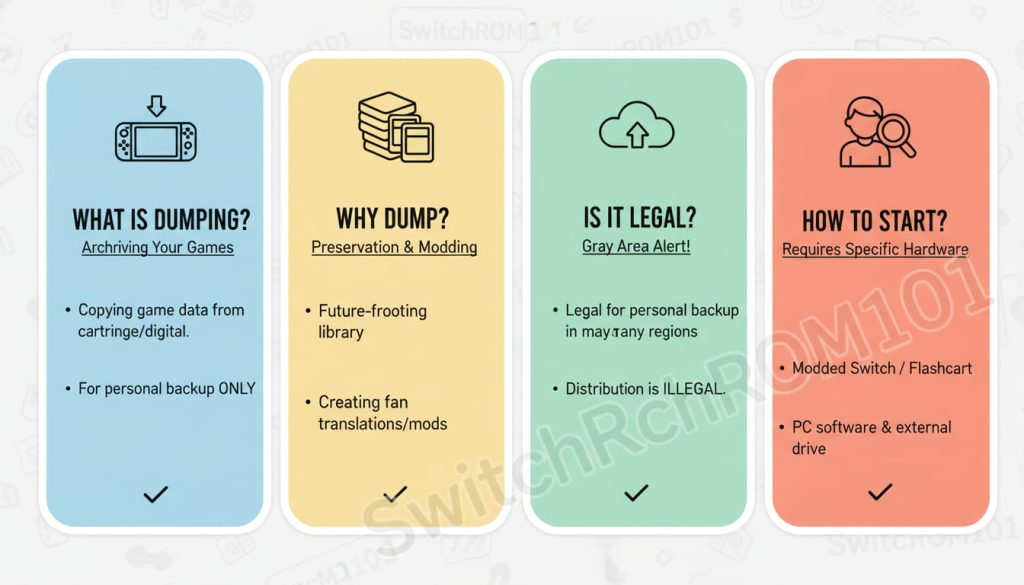
Dumping Explained
In simple terms, dumping is the process of copying the data from a physical game cartridge (or a digital game you’ve purchased) into a file format that can be read by other devices or software.
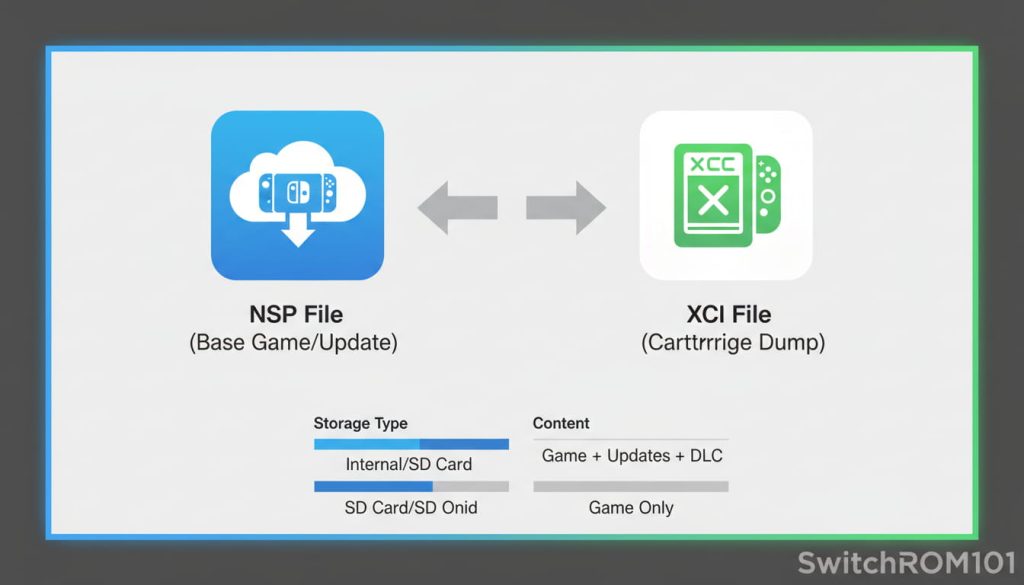
For the Nintendo Switch, this typically means converting the game into a ROM or digital file format like NSP or XCI, which can then be used in emulators or for safe backup purposes.
Why Would You Want to Dump Your Own Switch Games?
Legal Backup
One of the main reasons to dump your own games is for backup purposes. If you own a Switch cartridge, you may want to create a digital copy in case the physical game is damaged or lost.
Emulation and Experimentation
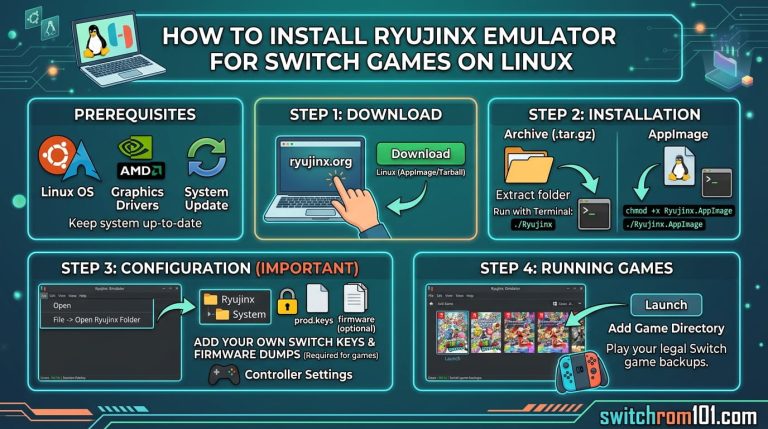
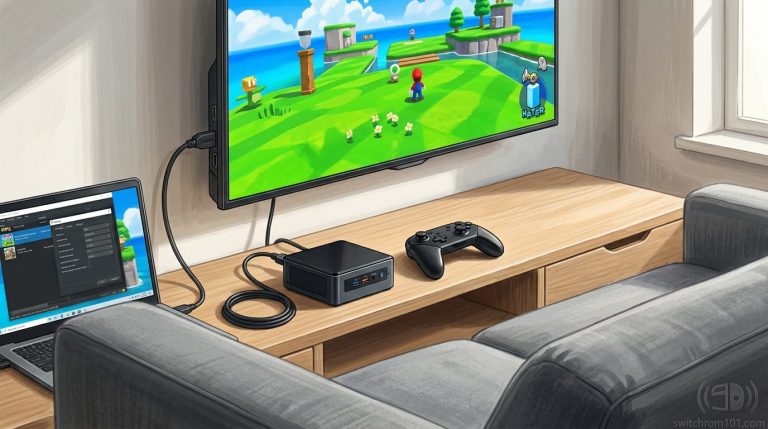
Another reason is to use the ROM with emulators like Yuzu or Ryujinx, which allow you to play Switch games on your PC. Dumping your own games ensures you’re only using ROMs for titles you legally own.
Preservation
For collectors and enthusiasts, dumping games is a way to preserve titles that might otherwise be difficult to maintain in their physical form, especially as cartridges wear out over time.
What Do You Need to Dump Switch Games?
Hardware Requirements
- Nintendo Switch Console (Unmodified): You can dump games from a regular Switch—no modification required.
- MicroSD Card: You’ll need a microSD card with plenty of space to store your ROM files.
- PC or Laptop: For transferring and organizing your dumped game files.
- USB-C Cable: To connect your Switch to your PC for file transfer.
Software Requirements
To dump Switch games, you’ll need specific software:
- TegraRcmGUI (Windows) or Hekate (Linux/Mac) for initial console access.
- Goldleaf or Tinfoil for transferring game data from the Switch to your PC.
- NxDumpTool: The software used for dumping ROMs from the Switch.
- NSP or XCI Tool for converting and managing game files.
Step-by-Step Guide: How to Dump Your Own Switch Games
Step 1: Prepare Your Switch
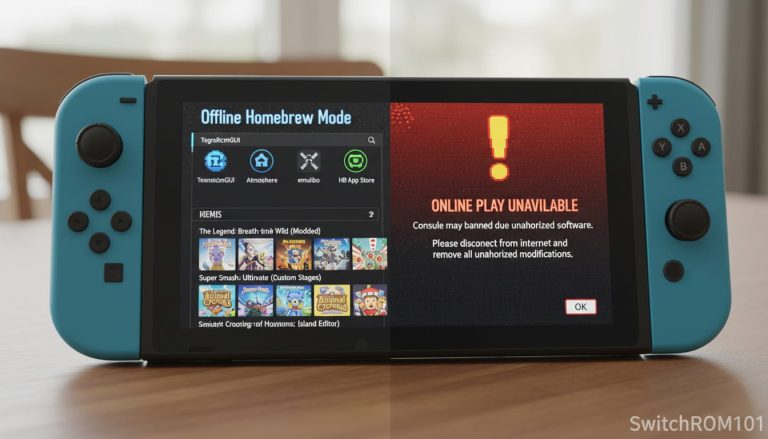
Before you begin, make sure your Switch is fully charged. You’ll also need to ensure you can access the Switch’s file system, so you’ll have to have homebrew enabled (using software like Atmosphere) on your Switch.
Don’t worry—this isn’t as risky as it sounds if done carefully.
Step 2: Download the Necessary Tools
Download the tools listed in the Software Requirements section:
- TegraRcmGUI for Windows or Hekate for Linux/Mac (to enable homebrew).
- NxDumpTool for dumping your ROMs.
- Goldleaf or Tinfoil for transferring the files.
Step 3: Enable Homebrew on Your Switch
Homebrew allows you to run custom software on your Switch. This step involves:
- Setting up Atmosphere on your Switch (there are many tutorials online for this).
- Running a payload to get homebrew access (TegraRcmGUI for Windows or Hekate for Linux/Mac).
- It’s crucial to follow a trusted guide to ensure this step is done safely.
Step 4: Use NxDumpTool to Dump Your Game
- Open NxDumpTool on your Switch.
- Select the game you want to dump from the home menu (you must have the physical cartridge inserted or the digital game installed).
- Start the dumping process, and the tool will create a ROM file in either NSP or XCI format.
- Wait for the process to complete. It may take some time, depending on the game size.
Step 5: Transfer the ROM to Your PC
Once the ROM is dumped, use Goldleaf or Tinfoil to transfer the game file from your Switch’s microSD card to your computer. The transfer process is straightforward:
- Insert the microSD card into your PC.
- Copy the dumped ROM file to a folder on your computer.
Step 6: Use the ROM
Now that the ROM is on your PC, you can:
- Play the game with a compatible Switch emulator (e.g., Yuzu, Ryujinx).
- Store the game safely as a backup in case your physical cartridge gets damaged or lost.
Common Issues and Troubleshooting
My Dumped Game Doesn’t Work
If your dumped game doesn’t launch, the issue might be related to:
- Incomplete dump: Ensure the full game data was copied.
- Emulator compatibility: Check whether the emulator supports the game or format.
My Switch Is Not Recognizing the Dump Tool
If you can’t access the dump tool, check that:
- Your Switch has homebrew enabled correctly.
- The payload was injected properly (make sure you’re using the right software and version).
Errors During Transfer
Sometimes, transferring ROMs between the Switch and your PC might fail. If this happens:
- Check the USB-C cable connection.
- Ensure that your microSD card is properly inserted and formatted.
People Also Ask
Can you dump your own Switch games legally?
In some regions, creating personal backups of games you legally own is allowed, but sharing or downloading ROMs is not.
Do you need a modded Switch to dump games?
Yes. Homebrew or custom firmware is required to access dumping tools.
What file formats are created when dumping Switch games?
Most tools create NSP or XCI files, depending on the source.
Can dumped Switch games be used for emulation?
Yes, dumped games can be used with compatible emulators for personal testing or backup use.
Is sharing dumped Switch games legal?
No. Sharing or distributing ROM files is illegal in most countries.
FAQ: How to Dump Your Own Switch Games
Can I dump digital games I’ve purchased from the eShop?
Yes, you can dump digital games you own using the same method.
Do I need a modded Switch to dump games?
Yes, you need homebrew or custom firmware to access the necessary tools for dumping.
Is it legal to dump my own games?
In some regions, making personal backups of games you own is legal, but sharing or downloading ROMs is not.
How long does it take to dump a game?
The time depends on the game size but usually ranges from 30 minutes to over an hour.
Can I play the dumped ROMs on any device?
You can play dumped ROMs on emulators that support the NSP or XCI formats, like Yuzu and Ryujinx.
So, how to dump your own Switch games into ROM files?
It involves using homebrew tools like NxDumpTool to create a digital copy of your games. Once dumped, the ROM can be stored or played on emulators like Yuzu. Just remember, backup your games responsibly and be aware of legal implications depending on your region.
Have you tried dumping your own Switch games yet? Share your experience in the comments below or explore our other guides for more tips on backup and emulation!

(GameOverlord) has been involved in Nintendo Switch emulation
since 2019. She owns two Nintendo Switch consoles and a Steam Deck OLED,
and has hands-on tested over 40 Switch titles across Ryujinx and
Sudachi emulators. Her background is in consumer electronics and
she has followed emulation law developments in the US, UK, and EU
since the Yuzu shutdown in 2024. SwitchROM101 was built to fill the
gap left by misleading ROM sites — giving gamers accurate, legal,
and technically correct information without hosting any game files.