Switch 2 GameChat Setup Guide: How to Start a Chat in 3 Steps (2026)
Quick answer: Press the C button on your right Joy-Con 2, or tap the GameChat icon on the HOME screen. Nintendo Switch Online membership is required from April 1, 2026. Basic plan costs $19.99/year. Video chat requires a compatible USB-C camera (sold separately).
What is GameChat on Switch 2?
GameChat is Nintendo’s built-in voice and video chat feature, accessible directly from the Switch 2 without needing a phone app or third-party service. Wired described it as “the most notable, wholly new feature” of the Switch 2 at launch. It uses the Switch 2’s built-in microphone — which picks up voices clearly even from across a room — and supports up to 12 people in a voice session and up to 4 on video simultaneously.
The feature is accessed via the dedicated C button on the right Joy-Con 2 or from the HOME screen icon. Unlike the Switch 1’s reliance on Nintendo’s separate phone app for voice chat, GameChat is fully integrated into the console’s interface.
From April 1, 2026, GameChat requires a Nintendo Switch Online membership. The basic plan costs $19.99 per year (or $3.99 per month) and also includes online play, cloud saves, and access to classic game libraries.
How to set up GameChat — 3 steps
Step 1: Subscribe to Nintendo Switch Online
- From the HOME screen, open the Nintendo eShop.
- Select your profile icon in the top-right corner.
- Select Nintendo Switch Online → View Plans.
- Choose Individual Membership ($19.99/year or $3.99/month) or Family Membership ($34.99/year for up to 8 accounts).
- Complete purchase. Membership activates immediately.
If you already had a Nintendo Switch Online membership on your original Switch, it carries over to Switch 2 automatically. You do not need to repurchase.
Step 2: Complete GameChat initial setup
- Press the C button on your right Joy-Con 2 (or select GameChat icon on HOME screen).
- On first launch, Switch 2 walks you through a short GameChat setup process.
- Accept the GameChat terms of service.
- Set your microphone preferences — the built-in mic is selected by default.
- Optionally configure privacy settings (who can send you GameChat invites).
- Setup is complete. You are now ready to start or join sessions.
Step 3: Start a GameChat session or join a friend
- Press the C button at any time — even during gameplay — to open the GameChat overlay.
- Select Create Room to start a new session.
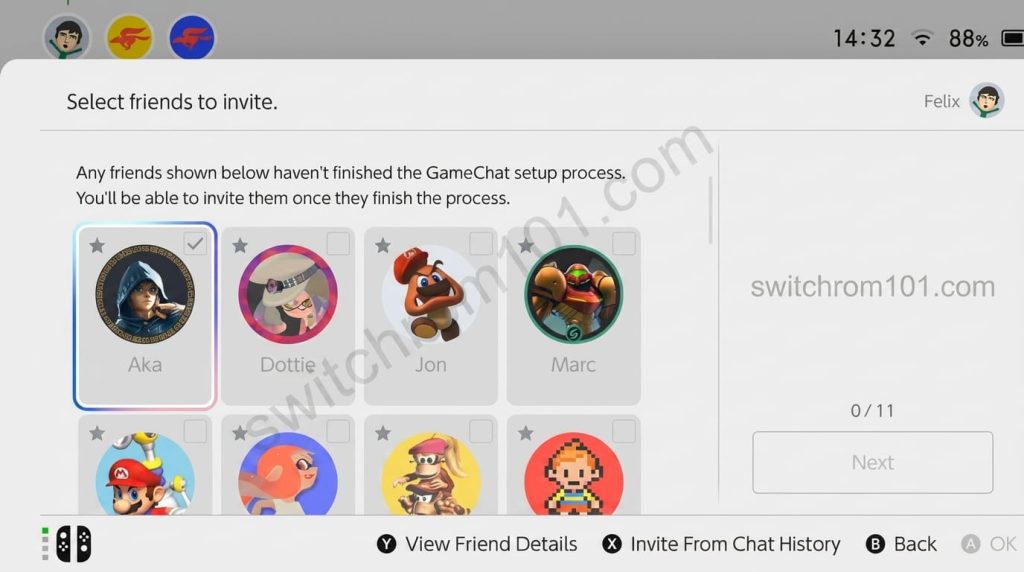
- From your Friend List, select friends to invite. Friends who haven’t completed GameChat setup can still be invited but will need to finish setup before joining.
- Select Send Invite. Friends receive a notification on their Switch 2.
- To join an existing session: when you receive an invite, press C → Accept Invite.
How to add video to GameChat
Video chat requires a compatible USB-C camera connected to the Switch 2. The console does not have a built-in camera.
- Nintendo Switch 2 Camera (official, $55) — USB-C, 110-degree wide lens, 1080p sensor, aluminium body. Attaches to the top USB-C port.
- Compatible smartphones as webcam — iPhone 15/16 and Android phones with DisplayPort Alternate Mode support can be used as a camera via USB-C to HDMI cable and capture cable.
- Any USB-C compatible webcam — many standard USB-C webcams work. Check Nintendo’s compatibility list for confirmed models.
Once a camera is connected, GameChat automatically detects it. Tap the camera icon within a GameChat session to enable video. Up to 4 participants can have video active simultaneously.
Best Cooling Pads for Switch Emulators on a Laptop: Top Picks for 2026
GameChat vs Discord — which should you use?
GameChat’s main advantages are integration (no phone needed, accessible mid-game via C button), a Nintendo Account-backed social graph, and parental control compatibility. Its screen-sharing feature — letting friends watch your gameplay in real time — is unique and genuinely useful for showing off a tricky dungeon or asking for help.
Discord remains superior for: cross-platform friend groups (Switch + PC + PS5 users in one call), communities larger than 12 people, text channels, and users who already have established Discord servers. CNN Underscored noted that GameChat interface resembles a Discord call but Nintendo integration is the real value — not the concept itself.
The practical answer for most players: use GameChat for Switch-only friend groups and Discord for mixed-platform gaming sessions.
Common GameChat problems and fixes
GameChat says “Nintendo Switch Online membership required”: From April 1, 2026, a paid subscription is mandatory. Purchase via eShop as described in Step 1 above.
Friends cannot be invited to my GameChat room: Friends who haven’t completed GameChat initial setup cannot be invited until they do. Ask them to press C on their Switch 2 and complete the one-time setup.
My microphone is not picking up my voice clearly: Check Settings → System → Microphone. Ensure input level is not set to minimum. The built-in mic works best when you are within 3–4 metres of the console.
GameChat video is blurry: Screen sharing in GameChat uses a compressed video feed that may appear low-quality on some connections. This is expected behaviour for screen share — voice quality is handled separately and should be clear.

(GameOverlord) has been involved in Nintendo Switch emulation
since 2019. She owns two Nintendo Switch consoles and a Steam Deck OLED,
and has hands-on tested over 40 Switch titles across Ryujinx and
Sudachi emulators. Her background is in consumer electronics and
she has followed emulation law developments in the US, UK, and EU
since the Yuzu shutdown in 2024. SwitchROM101 was built to fill the
gap left by misleading ROM sites — giving gamers accurate, legal,
and technically correct information without hosting any game files.