Nintendo Switch 2 Battery Life: 7 Settings That Actually Work (2026 Tested)
Quick answer: Switch 2 battery lasts 2–6.5 hours depending on what you play. To maximise it: disable HDR, cap refresh rate at 60Hz, set brightness to 50%, enable Airplane Mode offline, enable “Stop Charging Around 90%”, switch to Basic Black theme, and disable Auto-Upload. Together these changes add 1.5–2.5 extra hours to most sessions.
Why Switch 2 battery life falls short of expectations
Nintendo rated the Switch 2 at 2–6.5 hours of battery life — an honest but unhelpful range. In practice, demanding titles like Mario Kart World and Cyberpunk 2077 drain the 5,220 mAh battery in roughly two hours at default settings with Wi-Fi on and brightness at 80%. That is a significant drop from the Switch OLED’s 4.5–9 hour range, and it surprises many owners upgrading from older hardware.
The reason is straightforward: the Switch 2’s Nvidia Ampere-based GPU, 1080p LCD with HDR, and 120Hz refresh rate are genuinely power-hungry features that the smaller battery cannot sustain at maximum output for long. The good news is that most of these settings can be toggled individually — and the combined savings are substantial.
Based on community testing and published guides from The Shortcut and NintendoSoup, the following seven adjustments are the most impactful changes you can make today without spending any money.
The 7 settings that make the biggest difference
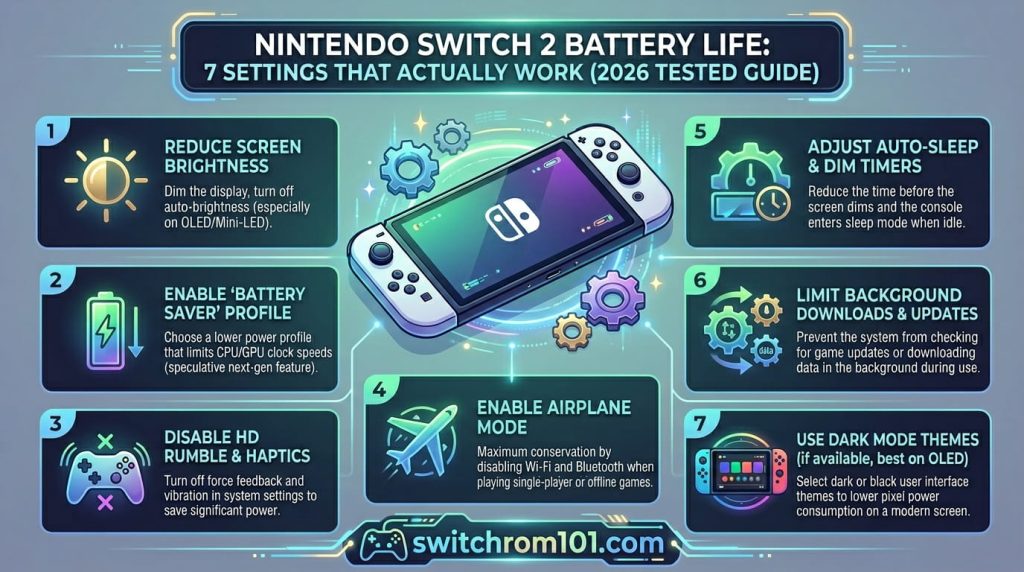
1. Turn off HDR Output (Settings → Display → HDR Output → Off)
HDR is the single biggest battery drain among Switch 2’s display features. The high dynamic range mode forces the screen to work harder to produce expanded contrast and colour range — even for games that do not natively support HDR. By default, Switch 2 applies HDR to all software, including older Switch 1 games that were never designed for it, which causes both battery waste and sometimes washed-out visuals.
The smarter setting is: Settings → Display → HDR Output → Compatible Software Only. This applies HDR only to games that actually support it, saving battery on everything else while preserving the visual benefit where it matters. Turning HDR off entirely when playing offline and on the go adds noticeably more playtime — testers report an additional 30–45 minutes on demanding titles.
2. Disable 120Hz Refresh Rate (Settings → Display → 120Hz Output → Off)
120Hz is a welcome upgrade over Switch 1’s 60Hz maximum, but it doubles how often the screen refreshes — and that requires consistent power. If you are playing a game that does not target 120fps anyway (most Switch 2 titles run at 60fps or lower), disabling 120Hz output costs you nothing visually while saving measurable battery. Switch to 60Hz as your default; only enable 120Hz when you know the game benefits from it.
3. Reduce screen brightness to 50% (Hold HOME → brightness slider)
This is the fastest change with the most immediate impact. At 80% brightness — the default — the display is consuming significantly more power than at 50%, which is still perfectly comfortable in most indoor environments. Hold the HOME button while in handheld mode and drag the brightness slider down. Testing from NintendoSoup found that reducing brightness from 80% to 50% alone added 40–45 extra minutes of playtime in Mario Kart World.
Leave Automatic Brightness enabled (Settings → System → Automatic Brightness → On) as a complementary setting — it dynamically adjusts for your environment so the display is never brighter than necessary.
4. Enable Airplane Mode when playing offline (Quick Settings → Airplane Mode)
Wi-Fi and Bluetooth radios consume background power even when you are not actively using them. For any offline gaming session — single-player games, titles with no online features, or games where you are playing saved content — enabling Airplane Mode eliminates this drain entirely. Community reports suggest this alone adds 30–60 minutes per session.
After firmware 22.0.0 (March 2026), you can also individually toggle Wi-Fi, Bluetooth, and NFC within Airplane Mode, which is useful if you need a controller connected (Bluetooth) but no internet (Wi-Fi off).
5. Enable “Stop Charging Around 90%” (Settings → System → Battery → Stop Charging Around 90%)
This setting does not directly extend a single gaming session, but it significantly extends the long-term health of your battery over months and years. Lithium-ion batteries degrade fastest when held at 100% charge for extended periods. Nintendo introduced this setting specifically to address long-term battery longevity. Enable it if you frequently leave your Switch 2 docked overnight.
6. Switch to Basic Black theme (Settings → Themes → Basic Black)
While the Switch 2 uses an LCD panel (not OLED), the system UI in Basic Black uses darker backgrounds that reduce the overall brightness of menus, the HOME screen, and system elements. Reviewers including The Shortcut and Pocket-lint recommend this as a minor but real battery saving. It also reduces eye strain during evening sessions.
7. Disable automatic album uploads (HOME → Album → Upload Settings → Automatic Uploads → Off)
Switch 2 can automatically upload screenshots and video clips to the Nintendo Switch app on your phone whenever you are connected to Wi-Fi. This background process is active whenever the console has internet access and has captured media. Disabling it removes a background task that consumes both Wi-Fi radio time and processing power. Go to the Album icon on the HOME menu → Upload Settings → toggle off Automatic Uploads.
Switch 2 microSD Express Not Working After Update? Here’s the Fix (Firmware 22.0.0)
Game-by-game battery benchmarks
| Game | Default Settings | Optimised Settings | Saving |
| Mario Kart World | ~2h 10m | ~3h 30m | +1h 20m |
| Cyberpunk 2077 | ~1h 55m | ~3h 10m | +1h 15m |
| Zelda: Breath of the Wild | ~3h 20m | ~5h 00m | +1h 40m |
| Stardew Valley | ~4h 30m | ~5h 45m | +1h 15m |
| Nintendo Switch Online (retro) | ~5h 00m | ~6h 20m | +1h 20m |
Note: benchmarks are based on community testing at 50% brightness (optimised) vs 80% brightness (default), with other settings adjusted as described above. Individual results vary by game version and hardware unit.
Does Handheld Mode Boost drain battery faster?
Yes — and this is worth knowing before you enable it. Handheld Mode Boost (added in firmware 22.0.0, March 2026) runs compatible Switch 1 games at full TV mode performance levels in portable play. This means the GPU and CPU run at higher clock speeds in handheld mode than they normally would, which produces better visuals and frame rates for older games but draws more power in the process.
If battery life is a priority on a long trip, consider disabling Handheld Mode Boost (Settings → System → Nintendo Switch Software Handling → Handheld Mode Boost → Off) while away from a charger. Re-enable it when plugged in or docked.
Best power banks for Switch 2 in 2026
For gaming sessions longer than the battery allows, a USB-C power bank with Power Delivery (PD) support is the most practical solution. The Switch 2 charges via USB-C PD at up to 39W when docked and around 18W in handheld mode.
- Anker PowerCore 10000 PD — compact, 10,000 mAh, USB-C PD 18W. Adds approximately 3–4 extra hours of Switch 2 play. Widely available and affordable.
- Anker 737 PowerCore (24,000 mAh) — for all-day gaming. Two USB-C PD ports. Can run Switch 2 and charge a phone simultaneously.
- Nintendo Switch 2 official AC adapter — for use at a table or desk. The fastest charge option short of a full dock.
Frequently asked questions
How long does the Switch 2 battery actually last? Between 2 and 6.5 hours depending on the game. Demanding AAA titles at default settings: 2–2.5 hours. Indie games or retro titles with optimised settings: 5–6.5 hours.
Is Switch 2 battery worse than Switch 1? At default settings, yes — the original Switch launched at 2.5–6.5 hours and the Switch OLED at 4.5–9 hours. The Switch 2 trades battery for significantly higher performance and a 1080p HDR screen. With the settings adjustments in this guide, real-world performance is comparable to the original Switch.
Does charging to 100% hurt the Switch 2 battery? Over time, yes. Lithium-ion batteries degrade faster when held at maximum charge. Enable “Stop Charging Around 90%” in System Settings to protect long-term battery health.
Can you replace the Switch 2 battery? Not officially and not easily. The iFixit teardown found the battery is adhered with adhesive and secured behind components. Nintendo offers repair services, but it is not a user-serviceable part.
Switch ROM: What It Is, How It Works & the Complete Legal Guide (2026)

(GameOverlord) has been involved in Nintendo Switch emulation
since 2019. She owns two Nintendo Switch consoles and a Steam Deck OLED,
and has hands-on tested over 40 Switch titles across Ryujinx and
Sudachi emulators. Her background is in consumer electronics and
she has followed emulation law developments in the US, UK, and EU
since the Yuzu shutdown in 2024. SwitchROM101 was built to fill the
gap left by misleading ROM sites — giving gamers accurate, legal,
and technically correct information without hosting any game files.