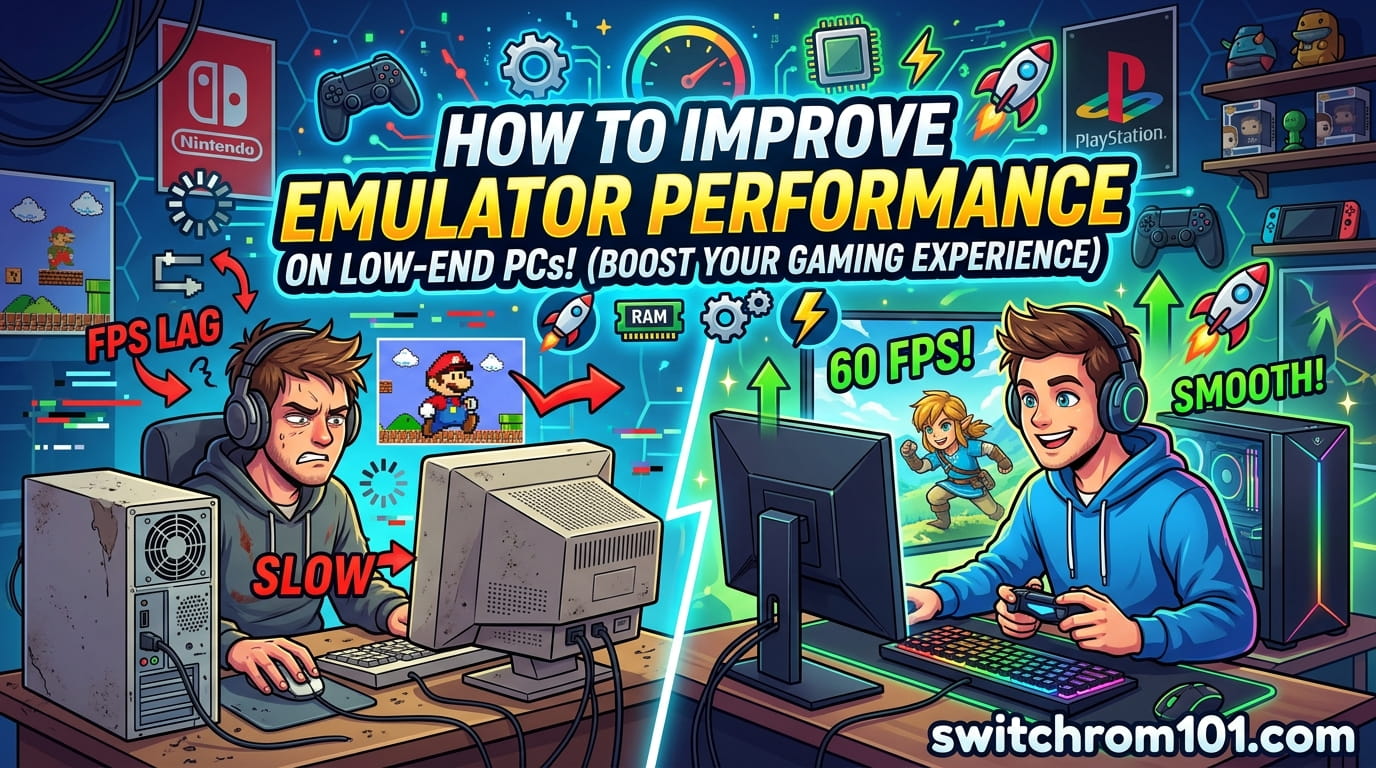
🕹️📖How to Improve Emulator Performance on Low-End PC: Boost Your Gaming Experience
Running an emulator on a low-end PC can be challenging, especially when trying to play demanding games. However, with the right settings and optimizations, you can significantly improve performance and enjoy smooth gameplay. Whether you’re running Switch emulators like Yuzu or Ryujinx, or older emulators for consoles like PS2 or GameCube, this guide will help you get the most out of your low-end PC setup.
Understanding Emulator Performance on Low-End PCs
Emulators are software programs that mimic the hardware of gaming consoles, allowing you to play games from various systems on your PC. However, emulation requires a lot of computing power, and a low-end PC often struggles to handle the demands. Common performance issues on low-end PCs include:
- Laggy gameplay
- Low frame rates
- Long loading times
- Graphical glitches
The key to improving performance is understanding your PC’s limitations and using the right optimization techniques.
1. Choose the Right Emulator for Low-End PCs
Not all emulators are created equal. Some are better optimized for performance on low-end PCs, while others demand a lot of processing power.
- For Switch Emulation: If you’re running Switch emulators, Yuzu and Ryujinx are the two most popular choices. Yuzu tends to perform better on lower-end PCs compared to Ryujinx, but it’s always a good idea to test both and see which works better for you.
- For Older Consoles: If you’re emulating older systems like PS2, PCSX2 is a great option with a wide range of optimization settings.
2. Adjust Emulator Settings for Better Performance
Tweaking emulator settings can help you achieve better performance. Here are some key settings to adjust:
A. Resolution and Graphics Settings
- Lower the Resolution: High resolution increases the load on your system. In Yuzu or Ryujinx, reduce the internal resolution to 720p or even 480p for smoother performance.
- Graphics Backend: In emulators like PCSX2, switching between OpenGL and Direct3D can sometimes yield better performance. For Yuzu and Ryujinx, try switching between Vulkan and OpenGL to see which provides better performance on your system.
B. Frame Limiting
- Enabling frame limiting in the emulator can help maintain stable performance. In Yuzu, setting the frame rate to 30 FPS (if the game supports it) can improve the overall experience on low-end PCs.
C. Disable Enhancements
- Turn off enhanced graphics settings like anti-aliasing or shadows. These features look great but are demanding on your PC’s resources.
3. Update Graphics Drivers and Emulator Versions
- Graphics Drivers: Ensure that you have the latest drivers for your GPU. Outdated drivers can severely affect emulator performance.
- Emulator Updates: Regularly check for updates to the emulator itself. Developers are always working on improving performance, especially for low-end hardware.
4. Optimize System Settings for Emulation
Here are several system optimizations to improve emulator performance:
A. Close Background Processes
- Close any unnecessary applications running in the background. Use Task Manager to check for resource-heavy programs and stop them.
B. Increase Virtual Memory (Paging File)
- Virtual memory can improve emulator performance when physical RAM is limited. Go to System Properties > Advanced > Performance Settings, and increase the paging file size.
C. Set High-Performance Power Plan
- Ensure your PC is set to the high-performance power plan. This ensures your CPU and GPU are running at their full potential.
D. Disable Windows Visual Effects
- Disabling unnecessary visual effects in Windows can free up system resources. Go to Control Panel > System > Advanced System Settings and choose Adjust for best performance under Performance Settings.
5. Use Performance Boosting Tools
- Overclocking: If you have a low-end PC but a decent CPU or GPU, overclocking can help improve performance. Just be cautious, as overclocking generates more heat.
- Game Mode: Enable Game Mode in Windows 10/11. This optimizes system resources for gaming and emulation, ensuring that your PC focuses on running the emulator.
6. Use Lighter Alternatives for Low-End PCs
If a specific emulator is too demanding, consider switching to a lighter version or an older version of the emulator that is optimized for performance.
- Dolphin (GameCube/Wii Emulator): Dolphin offers a “legacy” build, which is optimized for older hardware and offers smoother gameplay on low-end PCs.
- PCSX2 (PS2 Emulator): Use an older version of PCSX2 for better compatibility with low-end systems.
Best Nintendo Switch Accessories to Enhance Your Gaming Experience (2026)
7. Install More RAM and Use a Faster SSD
A. Add More RAM
- If your PC has less than 8GB of RAM, upgrading to 16GB can significantly improve performance when running emulators, especially for more demanding titles.
B. Upgrade to an SSD
- Install your emulator and games on a Solid State Drive (SSD) instead of a traditional hard drive (HDD). SSDs are faster, improving load times and performance.
How to Improve Emulator Performance on Low-End PC
Improving emulator performance on a low-end PC requires optimizing both your emulator settings and system configuration. Start by selecting the right emulator, adjusting its settings for low-end hardware, and optimizing your PC’s performance. By following these tips, you can enjoy smooth gameplay even with limited resources.
FAQ
1. Can I run Switch emulators on a low-end PC?
Yes, Switch emulators like Yuzu and Ryujinx can run on low-end PCs, but you may need to lower graphics settings and adjust the emulator for better performance.
2. How much RAM do I need to run emulators on a low-end PC?
For the best experience, 8GB of RAM is the minimum, but 16GB is recommended for smoother performance on more demanding games.
3. How can I make my emulator run faster?
You can improve performance by lowering the internal resolution, disabling graphical enhancements, and closing background applications on your PC.
Best Nintendo Switch Accessories to Extend Battery Life in 2026
{ “@context”: “https://schema.org”, “@type”: “FAQPage”, “mainEntity”: [ { “@type”: “Question”, “name”: “Can I run Switch emulators on a low-end PC?”, “acceptedAnswer”: { “@type”: “Answer”, “text”: “Yes, Switch emulators like Yuzu and Ryujinx can run on low-end PCs, but you may need to lower graphics settings and adjust the emulator for better performance.” } }, { “@type”: “Question”, “name”: “How much RAM do I need to run emulators on a low-end PC?”, “acceptedAnswer”: { “@type”: “Answer”, “text”: “For the best experience, 8GB of RAM is the minimum, but 16GB is recommended for smoother performance on more demanding games.” } }, { “@type”: “Question”, “name”: “How can I make my emulator run faster?”, “acceptedAnswer”: { “@type”: “Answer”, “text”: “You can improve performance by lowering the internal resolution, disabling graphical enhancements, and closing background applications on your PC.” } } ] }
(GameOverlord) has been involved in Nintendo Switch emulation
since 2019. She owns two Nintendo Switch consoles and a Steam Deck OLED,
and has hands-on tested over 40 Switch titles across Ryujinx and
Sudachi emulators. Her background is in consumer electronics and
she has followed emulation law developments in the US, UK, and EU
since the Yuzu shutdown in 2024. SwitchROM101 was built to fill the
gap left by misleading ROM sites — giving gamers accurate, legal,
and technically correct information without hosting any game files.