Switch 2 microSD Express Not Working After Update? Here’s the Fix (Firmware 22.0.0)
URGENT: If your Switch 2 microSD Express card stopped working after the March 16, 2026 firmware update (version 22.0.0), you are not alone. This is a confirmed issue primarily affecting PNY 1TB cards. PNY has released an official firmware update tool for switch 2 microsd fix. Follow the steps below before reformatting — reformatting wipes all installed games.
What happened — the firmware 22.0.0 microSD issue explained
On March 16, 2026, Nintendo released firmware update 22.0.0 for the Switch 2. While the update added genuinely useful features — most notably Handheld Mode Boost — it also introduced a compatibility problem with certain microSD Express cards.
After updating, some owners found that their console displayed an “incompatible” error for an inserted microSD Express card that had been working perfectly before the update. The card is still partially readable — the console recognises it as a standard microSD card and can access screenshots and videos stored on it — but the console refuses to treat it as game storage. Any games installed on the affected card become inaccessible.
According to reports on the Switch 2 and Nintendo Switch Help subreddits, the cards most commonly affected are the PNY 1TB microSD Express card and to a lesser extent the Integral Gamer’s Edge X 1TB. Other brands have also been mentioned but are less frequently reported.
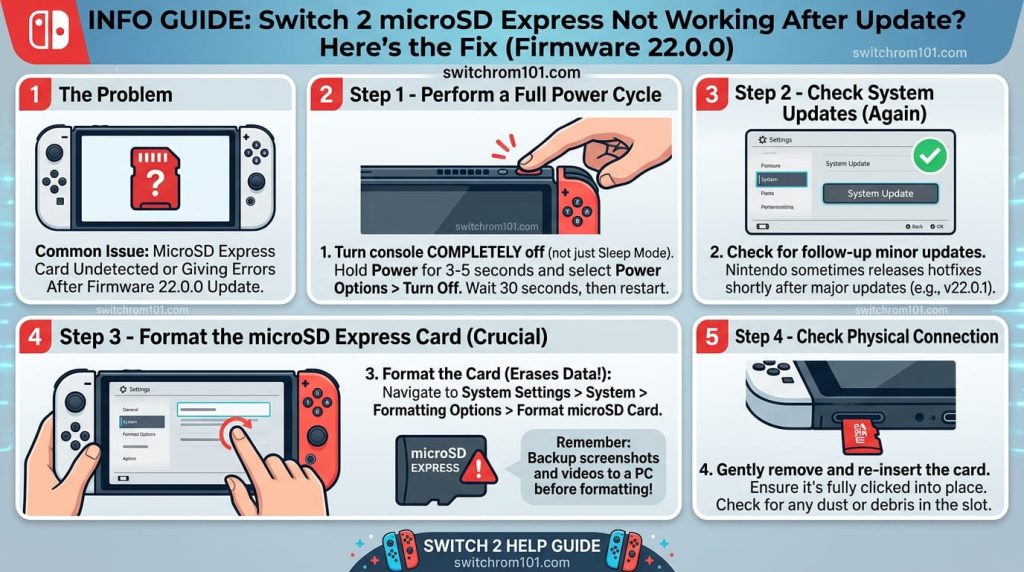
Step 1 (Try first): Update your PNY card firmware — official fix
On April 2, 2026, PNY Technologies officially acknowledged the issue and released a firmware update tool for affected 1TB microSD Express cards. This is the recommended first step before attempting any other solution.
- Visit pny.com/consumer/1tb-microsd-express-firmware on a Windows PC.
- Download the PNY microSD Express Firmware Update tool.
- Insert your PNY 1TB microSD Express card into the PC using a compatible card reader (not through the Switch 2).
- Run the firmware update tool and follow the on-screen instructions.
- Once complete, safely eject the card and reinsert it into your Switch 2.
- Restart the Switch 2 fully (hold power → Power Options → Restart, not Sleep Mode).
PNY’s support line for this issue: 800-234-4597 (Monday–Friday 9AM–7:30PM EST). Submit a ticket at pny.com/support if the firmware tool does not resolve the issue.
Is Nintendo Switch 2 Backwards Compatible? Full Answer + Exceptions (2026)
Step 2: Power cycle the console completely
If your card is not PNY or the PNY tool did not resolve the issue, the next step is a full power cycle — not a sleep/wake or standard restart.
- Hold the power button for 3 full seconds until the Power Options menu appears.
- Select Restart (not Sleep Mode — sleep preserves state and may not clear the recognition error).
- Wait for the console to fully boot back to the HOME screen.
- Check System Settings → System → Storage to see if the card is now recognised as game storage.
Step 3: Reseat the microSD Express card
- Power off the Switch 2 fully (hold power → Power Options → Power Off — not Restart).
- Open the kickstand on the back of the console.
- Locate the microSD slot on the right side under the kickstand.
- Press the card in slightly to release the spring mechanism, then remove it.
- Wait 10 seconds. Visually inspect the card for dust or debris on the contacts.
- Reinsert the card firmly until you hear or feel a click.
- Power the console back on and check storage recognition.
Step 4 (Last resort): Reformat via Windows — WARNING: wipes all games
WARNING: Reformatting your microSD Express card will delete ALL games installed on it. You will need to redownload them from the eShop. This can take hours depending on your internet speed and library size. Only do this if all other steps have failed.
- Remove the microSD Express card from the Switch 2.
- Insert it into a Windows PC using a USB card reader that supports microSD Express speeds.
- Open Disk Management (right-click Start → Disk Management).
- Locate the card (it will appear as a removable drive).
- Right-click the partition → Format → File System: exFAT → perform a quick format.
- Safely eject the card, reinsert into Switch 2.
- Switch 2 will detect the blank card and prompt you to set it up as game storage.
- Redownload your games from the eShop (Nintendo Account → Download History).
Cards confirmed working reliably after firmware 22.0.0
Based on community reports following the firmware update, these cards have been reported as working without issues:
- Samsung PRO Plus microSD Express 256GB / 512GB
- Lexar PLAY microSD Express 256GB
- Nintendo-licensed microSD Express cards (sold by Nintendo directly)
Cards with confirmed issues: PNY 1TB (official fix available via firmware tool), Integral Gamer’s Edge X 1TB (contact Integral support for assistance).
Nintendo’s official support page
Nintendo has a dedicated support page at en-americas-support.nintendo.com for “microSD Express Card is Not Recognized in Nintendo Switch 2” with official troubleshooting steps. If the steps above do not resolve your issue, contact Nintendo Support directly for hardware-specific assistance.
Frequently asked questions
Why did firmware 22.0.0 break my microSD Express card?
The exact technical cause has not been officially explained by Nintendo or PNY. The leading community theory is that the firmware update changed how the console validates microSD Express card firmware versions, and some older card firmware builds are no longer recognised as compatible.
Will my games come back after reformatting?
The games themselves are tied to your Nintendo Account, not the card. After reformatting and reinserting, you can redownload all purchased games from your eShop download history. Save data is stored on the Switch 2’s internal storage and is unaffected.
Should I buy a new microSD Express card?
Only if your existing card is physically damaged or all troubleshooting steps fail. For PNY 1TB owners, run the PNY firmware update tool first — it resolves the issue for most affected users without any data loss.

(GameOverlord) has been involved in Nintendo Switch emulation
since 2019. She owns two Nintendo Switch consoles and a Steam Deck OLED,
and has hands-on tested over 40 Switch titles across Ryujinx and
Sudachi emulators. Her background is in consumer electronics and
she has followed emulation law developments in the US, UK, and EU
since the Yuzu shutdown in 2024. SwitchROM101 was built to fill the
gap left by misleading ROM sites — giving gamers accurate, legal,
and technically correct information without hosting any game files.