How to Update Homebrewed Switch Without Losing CFW: The Correct Order (2026, fw 22.1.0)
The single rule that prevents every CFW loss: update Atmosphère first, then update the Switch firmware. Never the other way around. Breaking this sequence is what destroys CFW setups — not the update itself. Current recommended state: Atmosphère 1.11.1 + Hekate 6.5.2 + Switch firmware 22.1.0.
Why the update order matters — the technical reason
Nintendo Switch firmware updates occasionally change internal system module behaviour in ways that break existing Atmosphère patches. When you install a Switch firmware update before Atmosphère has been updated to account for those changes, you end up in a state where Atmosphère can no longer boot correctly — resulting in what most users describe as “losing CFW.”
The opposite sequence — updating Atmosphère before the firmware — is safe because Atmosphère updates are released to pre-emptively handle the new firmware. The Atmosphère team has visibility into what Nintendo’s firmware updates change before they release CFW updates, allowing them to patch the relevant components.
What “losing CFW” actually means: your Switch likely still works. Stock firmware still boots. What fails is Atmosphère’s ability to load, because its patches reference memory addresses or system module structures that changed in the firmware update. Your NAND backup (which you created before starting, as covered in the apps guide) is your recovery option.
The fw 22.0.0 case study — why this matters in 2026
Firmware 22.0.0 released on March 16-17, 2026, and created a real-world stress test for this principle. The update introduced a change in how Nintendo’s application lifecycle management (the am sysmodule) handled application and applet lifespan — a change the Atmosphère team had not seen in previous firmware updates.
This meant that even when Atmosphère 1.11.0 was released 18 days later (April 3, 2026), it initially worked but included a temporary workaround patch rather than a final fix. The GBAtemp community noted this explicitly: “Please report any issues you may face when testing homebrew to ensure no edge cases have been missed.”
Users who updated to firmware 22.0.0 before Atmosphère 1.11.0 was released found themselves on a firmware that Atmosphère could not support for 18 days. They were effectively stuck — they could boot stock firmware but had no CFW access until April 3. The community advice during this window, consistent with standard practice, was to stay on firmware 21.1.0 until Atmosphère support was confirmed.
Firmware 22.1.0 released April 6, 2026. Atmosphère 1.11.1 with 22.1.0 support was released the same week — the gap was 16 hours, demonstrating that when a firmware update is minor enough, the Atmosphère team can respond much faster.
The correct update sequence — step by step
Before you do anything: verify your NAND backup exists
If you do not have a recent NAND backup, stop and create one now using Hekate before proceeding. This is your recovery option if anything goes wrong. A NAND backup saved on your PC (not just the microSD card) can restore your console to its pre-update state.
Step 1: Check if a new Atmosphère version is available
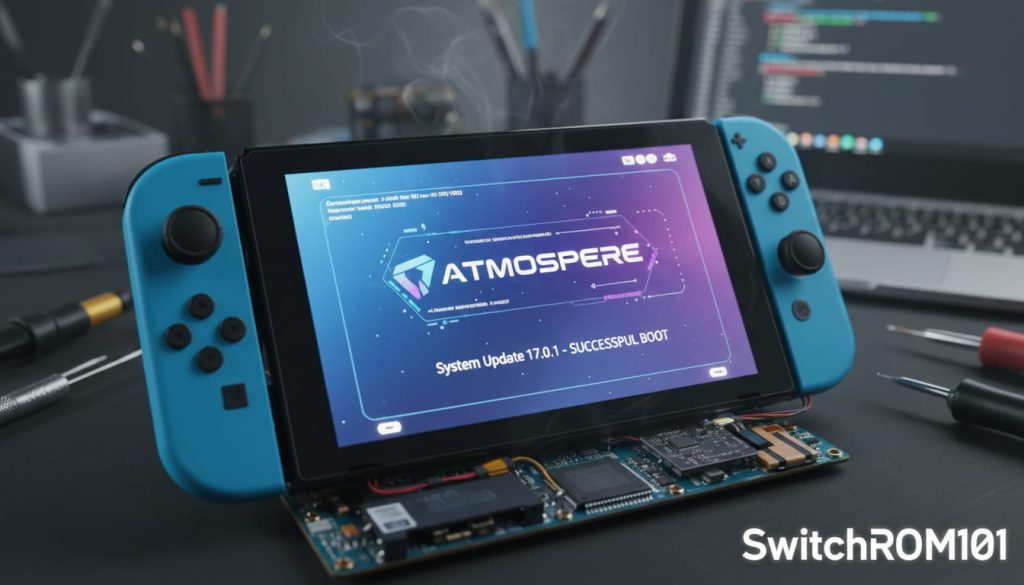
- On a PC, open github.com/Atmosphere-NX/Atmosphere/releases.
- Compare the latest release version to your current Atmosphère version (visible in the System Settings → System menu under “Atmosphère” on a running CFW setup).
- If a new version is available and it explicitly supports your target Nintendo firmware version — proceed. If no update exists yet for the firmware you want to install — wait.
The GBAtemp community maintains a thread tracking firmware/Atmosphère compatibility. Search “firmware [version] atmosphere” on GBAtemp before updating to any new firmware. This community check takes two minutes and prevents the 18-day lockout scenario.
Step 2: Update Atmosphère and Hekate files on microSD
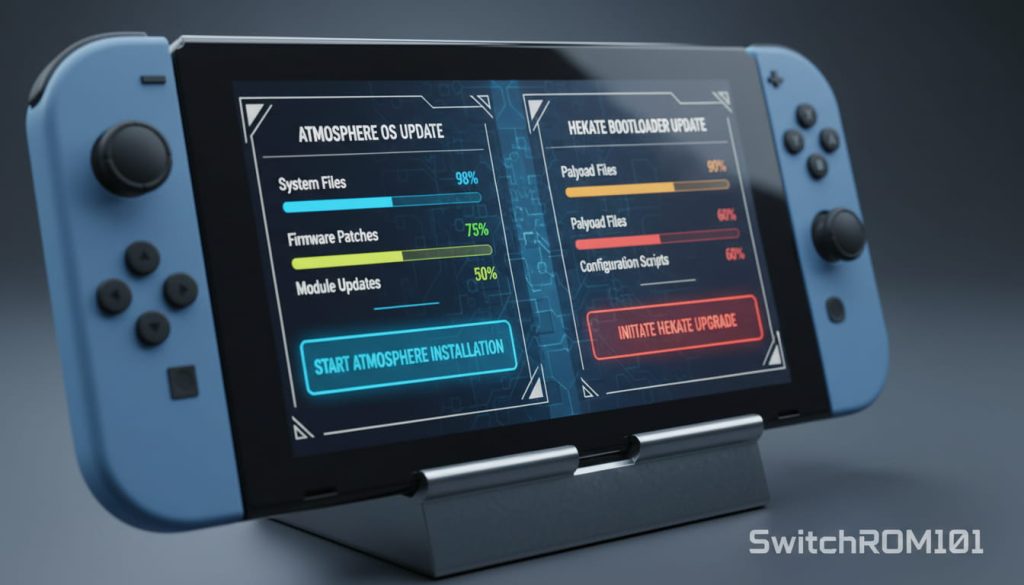
- Power off your Switch fully.
- Remove the microSD card and insert it into your PC.
- Download the latest Atmosphère release from GitHub. The release package is a .zip file.
- Extract the .zip contents. Copy the atmosphere/ folder and the hbmenu .nro to your microSD card, overwriting existing files when prompted.
- Download the latest Hekate release from github.com/CTCaer/hekate. Extract and copy hekate_ctcaer_X.X.X.bin (renaming it to payload.bin or the filename your config expects) to the microSD root.
- Copy updated sigpatches to the correct Atmosphère directory. Current sigpatches are available from the NH Switch Guide (switch.hacks.guide) alongside each firmware release.
- Safely eject the microSD from your PC.
Step 3: Boot into Hekate to verify CFW loads correctly
- Insert the microSD back into your Switch.
- Boot via RCM payload injection (for unpatched consoles) or via your modchip’s boot sequence.
- In Hekate, navigate to Launch → your Atmosphère emuMMC or sysNAND config.
- Confirm Atmosphère loads and the hbmenu appears when you open the Album app. If this works, Atmosphère is operational on your current firmware.
Step 4: Update the Switch firmware
- Now — and only now — open System Settings → System → System Update on your Switch while running stock firmware (or carefully through Atmosphère if your setup requires it).
- Alternatively, for emuMMC users: update the emuMMC firmware through Atmosphère’s tools if your setup supports this, keeping sysNAND on older firmware.
- Wait for the update to complete. The console will restart.
Step 5: Verify CFW still loads after firmware update
- After the firmware update completes, boot back into Atmosphère via Hekate.
- Check System Settings → System to confirm the firmware version updated correctly.
- Open the Album app to confirm hbmenu still launches.
- Test one homebrew app (Checkpoint is a good choice — minimal complexity) to confirm it runs.
Nintendo Switch 2 Battery Life: 7 Settings That Actually Work (2026 Tested)
emuMMC vs sysNAND — which should you update?
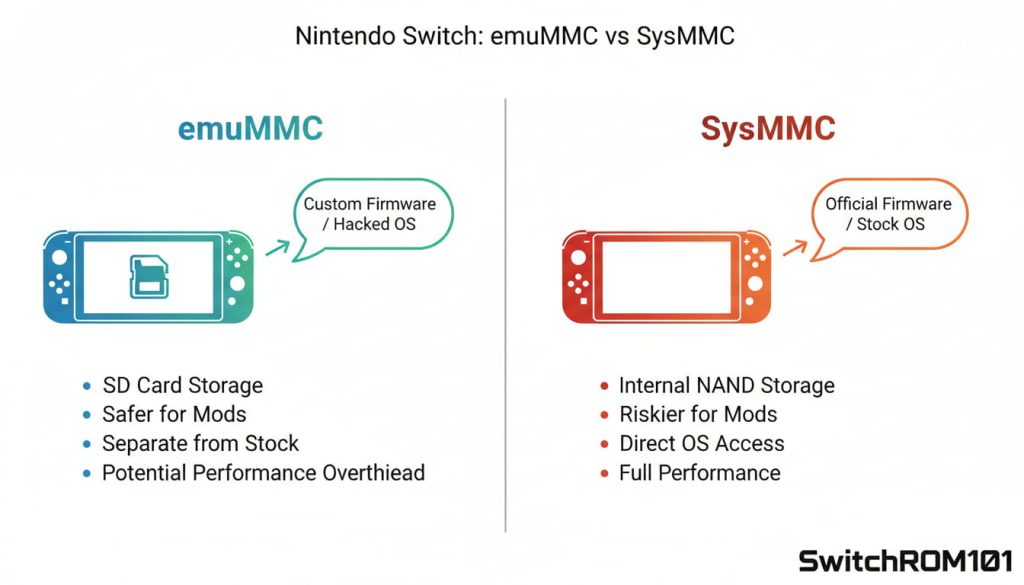
Users running emuMMC (an emulated NAND environment separate from the physical NAND) have an additional option: update the emuMMC firmware while keeping sysNAND on an older version. This creates a two-tier system where your online-safe stock environment stays on a known-good firmware, while your CFW emuMMC runs the latest.
The practical recommendation from the NH Switch Guide and GBAtemp community: most users should update both emuMMC and sysNAND in sequence following the process above. The benefit of keeping sysNAND old is primarily for users who want to preserve older exploit windows — for general use this is unnecessary complexity.
What to do if CFW breaks after an update
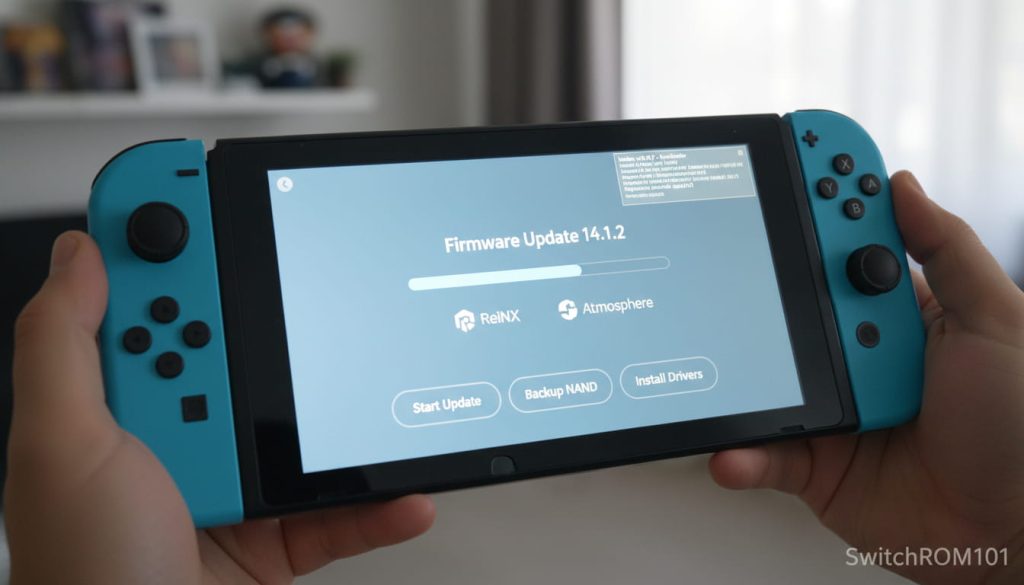
If you updated firmware before Atmosphère and CFW no longer boots, your options in order of preference:
- Wait: If Atmosphère support for your firmware version has not been released yet, waiting is the only option besides restoring from backup. Monitoring GBAtemp’s Atmosphère thread confirms when support arrives.
- NAND restore: If you have a full NAND backup, Hekate can restore it. This reverts your console to the exact state at backup time, including firmware version.
- Manually downgrade Atmosphère files: Placing an older Atmosphère version that supports your previous firmware on the microSD can restore CFW access, though you are then on mismatched firmware/CFW versions.
Frequently asked questions
What is the current safe Atmosphère version for firmware 22.1.0?
Atmosphère 1.11.1, released April 2026. Pair with Hekate 6.5.2 and updated sigpatches for firmware 22.1.0.
Should I stay on an older firmware to keep CFW working?
Only if the latest firmware has no Atmosphère support yet, and you need access to a specific game update available only on the new firmware. For most users, keeping Atmosphère and firmware current together is the best approach.
How long did Atmosphère take to support firmware 22.0.0?
18 days. Firmware 22.0.0 released March 16-17, 2026. Atmosphère 1.11.0 with support released April 3, 2026. The delay was due to a novel change in application lifecycle management that required a temporary workaround patch.

(GameOverlord) has been involved in Nintendo Switch emulation
since 2019. She owns two Nintendo Switch consoles and a Steam Deck OLED,
and has hands-on tested over 40 Switch titles across Ryujinx and
Sudachi emulators. Her background is in consumer electronics and
she has followed emulation law developments in the US, UK, and EU
since the Yuzu shutdown in 2024. SwitchROM101 was built to fill the
gap left by misleading ROM sites — giving gamers accurate, legal,
and technically correct information without hosting any game files.